

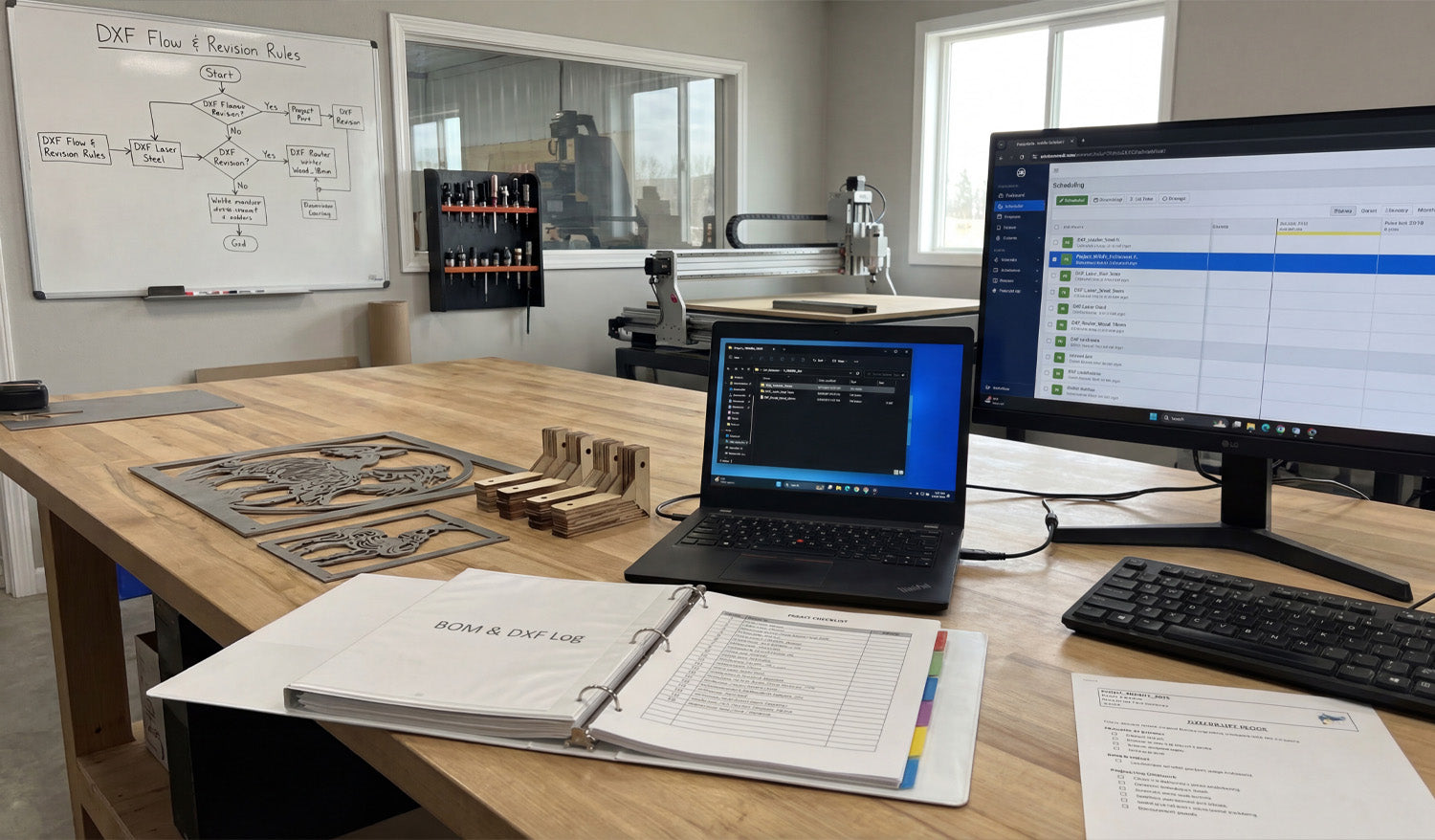
Managing multiple DXF files for large-scale CNC projects is all about control: clear structure, consistent naming, and a simple system that keeps designers, programmers, and machine operators working from the same, correct files every time.
Why Large-Scale CNC Projects Need a DXF System (Not Just Folders)
Cutting one small sign is easy. Cutting hundreds of parts for a big install, production run, or full product line is different. You may have:
- Dozens or hundreds of DXF files for a single project.
- Multiple machines (laser, plasma, router) using different versions of the same part.
- Revisions, client changes, and engineering updates happening mid-job.
Without a system, DXF files get duplicated, lost, or mixed up. A simple structure and workflow lets you scale up without chaos.
1. Organize DXF Files by Project First, Then by Machine
For large jobs, think in terms of projects, not just part types. A solid starting structure looks like this:
-
Projects
-
Project_ABC_2025
- 00_Input (customer drawings, PDFs, photos)
- 10_CAD_Master (original CAD and vector files)
- 20_DXF_Production
- Laser
- Plasma
- Router
- 30_CAM (CAM project files and nesting layouts)
- 40_GCode (posted NC programs)
- 99_Docs (BOM, notes, approvals)
-
Project_ABC_2025
This structure keeps everything for one project in one place, while still separating DXF files by machine type.
2. Use a Naming Convention That Scales
When you have many DXF files, good names are more useful than good memory. A simple, scalable pattern might be:
[ProjectCode]_[PartID]_[Material]_[Thickness]_[Process]_[Rev].dxf
For example:
ABC01_PanelA_steel_3mm_laser_R1.dxfABC01_Bracket02_aluminum_5mm_plasma_R2.dxf
Key points:
- ProjectCode: Links the part to a specific job or customer.
- PartID: Matches your drawing number or BOM code.
- Material & thickness: Makes it easy to pick the right file for the right sheet.
- Process: Laser, plasma, router, waterjet, etc.
- Revision: R1, R2, R3… so you always know which is latest.
3. Separate Master Design Files from Production DXF Files
In large projects, master design files and production DXF files should never be the same thing.
- Master files: CAD, AI, SVG, or parametric models with full design detail.
- Production DXF: Clean 2D profiles ready to import into CAM or the controller.
Keep master files in 10_CAD_Master and export only the geometry you actually need into 20_DXF_Production. This way:
- Design changes are made in the master, not hacked on the shop floor.
- Production DXFs remain simple, predictable, and easy to regenerate.
4. Link DXF Files to Your Bill of Materials (BOM)
For large-scale CNC projects, your DXF library should match your BOM. Every physical part on the BOM should have a clear DXF link.
- Add a column in your BOM for DXF filename.
- Use the same PartID in both the BOM and the DXF name.
- Mark which parts are cut, bent, purchased, or assembled.
When production asks, “Which DXF do we cut for Part 27?”, the BOM should answer that without hunting through folders.
5. Define Clear Revision Rules for DXF Changes
On big jobs, revisions are guaranteed—client requests, design improvements, or fit issues. Without rules, old DXFs keep resurfacing.
- Use R1, R2, R3 in filenames and keep old versions in a subfolder like _Archive.
- Only one version per part should live in the main DXF_Production folder.
- Update the BOM and any printed drawings when a revision goes live.
- Communicate changes to operators so they know old NC code may no longer be valid.
A simple revision system prevents the “wrong version” from being cut when it matters most.
6. Group DXF Files by Material and Thickness for Nesting
Large-scale projects usually involve long nesting sessions. It is painful if you have to manually pick through every DXF just to find parts for 3 mm steel.
- Inside DXF_Production, use folders such as:
-
Laser
- Steel_3mm
- Steel_6mm
- Aluminum_4mm
-
Laser
- Only place DXFs that are actually cut from that material/thickness into those folders.
Now, when you nest Steel_3mm, you are only looking at relevant DXFs for that sheet, not the entire project.
7. Use Simple Documentation Inside the Project Folder
A single text file can save hours of confusion on large jobs. Add a small README.txt or Notes.txt in each project:
- Describe material lists and which folders hold which parts.
- List any special cutting instructions (micro tabs, etching, priority parts).
- Note the current revision status (for example, “All parts at R2 except Bracket03 at R3”).
This is especially helpful when multiple people are sharing the same DXF library across shifts or departments.
8. Automate Repetitive Work Where Possible
Large-scale DXF management often has repetitive tasks that can be partly automated:
- Batch renaming: Apply your naming convention to many files at once.
- Folder sorting: Move DXFs into material-thickness folders based on patterns in the file names.
- Preview generation: Export small PNG/JPG previews from your CAD or CAM system to quickly identify parts.
Even simple automation can remove hours of manual sorting and naming when you handle dozens or hundreds of DXF files per project.
9. Centralize Storage and Control Access
For large jobs, you cannot afford “secret” copies of DXFs living on random desktops and USB drives.
- Store all project folders on a central server, NAS, or cloud-synced location.
- Give designers and engineers edit access to master and DXF folders.
- Give machine operators read-only access to DXF and G-code folders.
- Avoid copying DXFs manually to local machines unless necessary; always keep the “source of truth” centralized.
This minimizes version drift and ensures everyone works from the same set of approved DXFs.
10. Run a Pre-Production Audit of Your DXF Set
Before you start cutting full sheets for a large project, do a quick audit of your DXF collection:
- Verify that every BOM part has a matching DXF.
- Check that material and thickness in the filenames match what you plan to load.
- Open a random sample of DXFs to confirm closed profiles, no duplicates, and correct scale.
- Confirm that revisions in the DXF names match the BOM and printed drawings.
A short audit up front is cheaper than discovering a missing or outdated DXF halfway through a big run.
Quick Checklist for Managing Multiple DXF Files
Before you call a large project “ready,” check that:
- ✔ DXF files are organized by project, then by machine and material.
- ✔ A clear, consistent naming convention is used across all parts.
- ✔ Master design files are separated from production DXFs.
- ✔ Each BOM line item is linked to a specific DXF filename.
- ✔ Revisions and archives are handled in a predictable way.
- ✔ Material/thickness folders are ready for nesting.
- ✔ Project notes explain special instructions and current revision status.
- ✔ Storage is centralized, with controlled access for different roles.
Conclusion
Managing multiple DXF files for large-scale CNC projects does not require complex software—just a clear structure, consistent naming, and simple habits that everyone on the team follows. When your DXF library is organized by project, machine, material, and revision, you can scale up jobs, share work between operators, and run long production batches with far fewer mistakes, delays, and surprises on the shop floor.




