

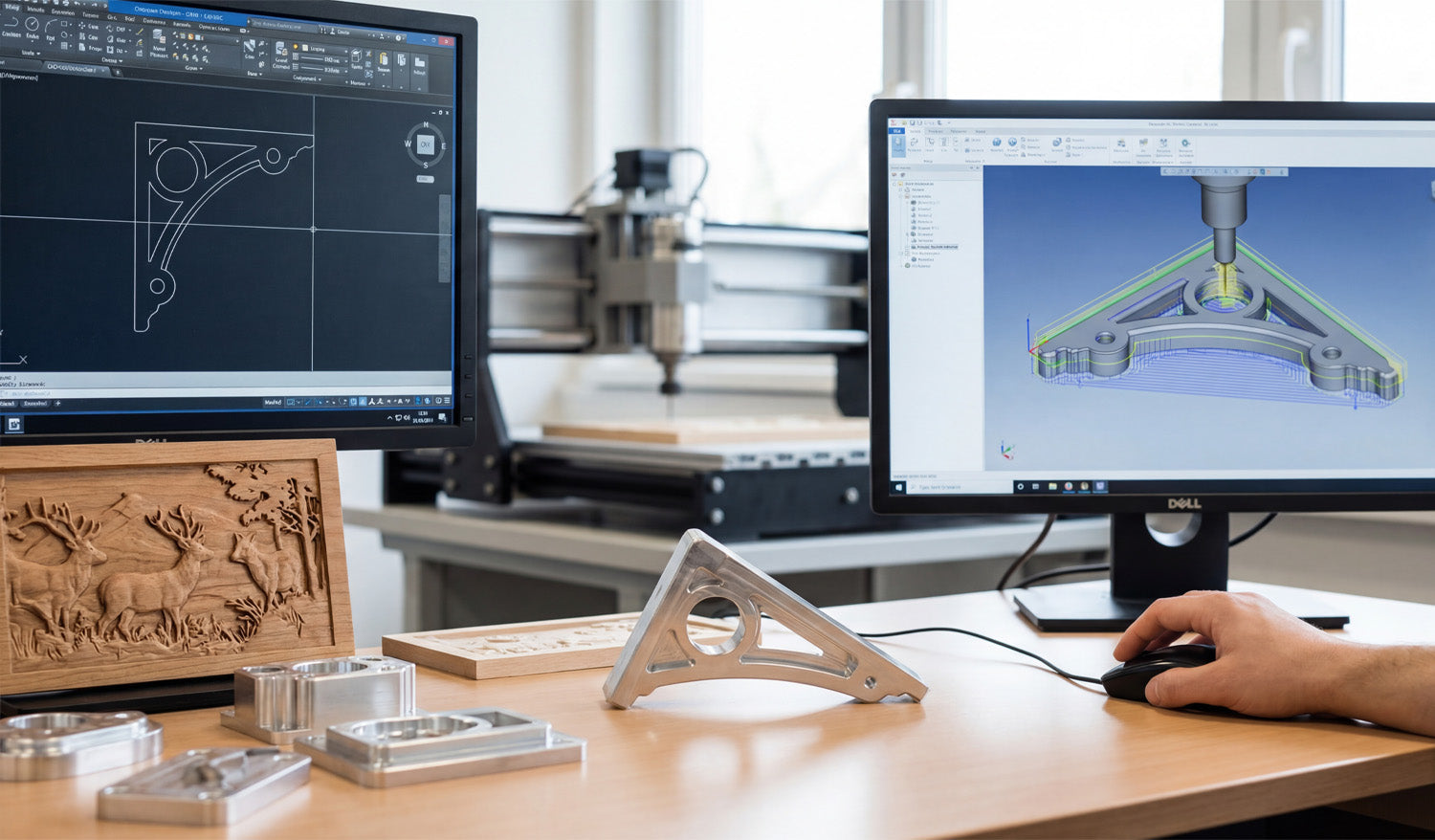
Creating 3D CNC models from DXF files is a smart way to turn flat drawings into real-world parts, fixtures, molds, or carved surfaces that your router or mill can machine with confidence.
How DXF Fits Into a 3D CNC Workflow
DXF files are usually 2D: profiles, outlines, and flat shapes. But those same profiles are exactly what 3D CAD and CAM software need as a starting point for solid models and 3D toolpaths.
- DXF = 2D geometry: Contours, centerlines, holes, and part outlines.
- 3D model = volume: Thickness, pockets, slopes, fillets, and complex surfaces.
- CNC = motion: Toolpaths that follow the 3D model and generate real parts.
The goal is to move smoothly from “good 2D DXF” to “clean 3D model” to “reliable 3D toolpaths.”
Step 1: Clean Up the DXF Before Going 3D
A messy DXF becomes an even messier 3D model. Start by fixing the basics while you are still in 2D.
- Confirm units and scale: Make sure the DXF is in mm or inches and that a known dimension matches real size.
- Close profiles: Outer outlines and inner cutouts should be true closed loops with no tiny gaps.
- Remove duplicates: Delete overlapping lines, arcs, and stacked geometry.
- Clean stray elements: Get rid of points, construction lines, and tiny scraps you do not need.
- Separate layers: Put different shapes (holes, outlines, centerlines) on logical layers if they are not already organized.
Think of this step as “detail prep.” A few minutes of cleanup now saves hours of frustration later in 3D.
Step 2: Import the DXF into 3D CAD as Sketches
Most 3D CAD systems let you import DXF files directly into a sketch on a plane (usually the XY plane).
- Create or open a 3D CAD project.
- Start a new sketch on the plane where you want the part to sit.
- Import the DXF into that sketch instead of floating it somewhere in space.
- Lock the imported geometry to your origin or a reference point so your model has a clear zero.
After import, run CAD tools like Trim, Extend, and Constraints to make sure the sketch is watertight and easy to extrude.
Step 3: Turn 2D Profiles into 3D Features
Once the DXF is a clean sketch, you can start turning lines into volume.
Extrude for Flat Parts and Plates
- Select the closed outer profile from the DXF sketch.
- Use an Extrude command to give the shape thickness (for example, 10 mm or 1/4").
- Cut internal profiles (holes, slots, pockets) by extruding them as “cut” operations through the solid.
Revolve for Round Parts
- If the DXF includes half-profiles of round parts (flanges, rings, pulleys), identify the centerline.
- Use a Revolve operation around that axis to create full 3D bodies.
Loft and Sweep for Complex Shapes
- Use multiple DXF sections at different heights and connect them with a Loft to create tapered or organic forms.
- Use a Sweep to extrude a DXF profile along a curve, for handles, rails, or decorative edges.
With just extrude, revolve, loft, and sweep, most 3D CNC-ready shapes are already possible from a basic DXF.
Step 4: Add Machining-Friendly Details in 3D
A machinable 3D model is more than an extruded plate. Add features that reflect how cutting tools actually behave.
- Fillets and chamfers: Smooth sharp edges for strength, aesthetics, or better tool access.
- Pockets and steps: Model pockets with true depths and bottom radii to match your tools.
- Bosses and pads: Add raised areas where bolts, bearings, or clamps will sit.
- Tool access: Check that tools can reach all internal corners; add reliefs or larger radii if needed.
Each tweak you make in 3D is one less surprise when you get to CAM and the real machine.
Step 5: Build 3D Reliefs and Carvings from DXF Artwork
For CNC routers and wood carving, DXF artwork is often the base for 3D relief models.
- Use DXF outlines as boundaries: Define the area where the relief will live (for example, a plaque border).
- Project DXF curves onto surfaces: Use them to guide sculpted areas, text, or logo regions.
- Convert layers into heights: Different DXF layers can represent different height zones in the 3D model.
- Combine with height maps if needed: Sculpt the main relief using a height map, then trim or frame it using DXF edges.
The DXF provides clean edges and layout; the 3D tools provide depth, slope, and form for carving.
Step 6: Move from 3D Model to CNC Toolpaths
With a solid model in place, you are ready for CAM (Computer-Aided Manufacturing). The steps depend on how complex your part is.
2.5D Toolpaths from DXF-Based Models
- Use pocket operations for flat-bottom cavities and steps.
- Use contour/profile operations around outer and inner edges.
- Use drill cycles for holes defined in the DXF-derived model.
Full 3D Toolpaths
- Use adaptive clearing / roughing to remove bulk material safely.
- Use parallel, scallop, or raster toolpaths to finish sloped or curved surfaces.
- Use pencil or contour finishing around tight internal features.
Because the model came from a clean DXF, your toolpaths follow geometry that already makes sense in the real world.
Step 7: Simulate, Check, and Correct Before Machining
3D CNC jobs are more expensive to get wrong. Simulation is your safety net.
- Simulate the full program to see how tools move and where material is removed.
- Check for collisions with clamps, fixtures, or neighboring features.
- Look for gouges and leftover material on critical surfaces.
- Verify that the stock size and zero point match how you will set up the machine.
If something looks off, go back to the 3D model or DXF sketch, adjust, and regenerate toolpaths before cutting metal or wood.
Step 8: Export CNC Code from the 3D-CAM Setup
Once the simulation is clean, export the machine code from CAM.
- Choose the correct post-processor for your CNC controller (for example, Fanuc, Mach3, GRBL, or a machine-specific post).
- Save programs with clear names like partname_op1_roughing.nc and partname_op2_finish.nc.
- Keep the DXF, CAD, CAM project, and final G-code together in a labeled project folder for future reuse.
At this point, your 3D CNC model has fully evolved from a flat DXF drawing into a ready-to-run machining job.
Common Mistakes When Turning DXF into 3D Models
Watch for these easy-to-avoid problems:
- Wrong scale: Importing DXF in the wrong units and building a full 3D model at 10× size.
- Open loops: Leaving gaps in the DXF sketch, which block extrudes and create broken solids.
- Too much detail: Bringing every tiny decorative line into a 3D machining project that does not need it.
- No thought for tools: Designing sharp inside corners that a round cutter simply cannot reach.
- Skipping test cuts: Going straight from screen to production without cutting a sample.
Quick Workflow Checklist: DXF to 3D CNC
- ✔ Clean and organize the DXF (units, closed profiles, no duplicates).
- ✔ Import as a sketch in 3D CAD and constrain it properly.
- ✔ Extrude, revolve, loft, or sweep to build a solid model.
- ✔ Add machining-friendly details: fillets, chamfers, pockets, access radii.
- ✔ Create CAM toolpaths from the 3D model (2.5D and 3D as needed).
- ✔ Simulate and verify stock, zero, and collisions.
- ✔ Post-process to CNC code and run test cuts.
- ✔ Save everything (DXF, CAD, CAM, G-code) for future jobs.
Conclusion
Creating 3D CNC models from DXF files is one of the most efficient ways to connect flat drawings with real machined parts. By cleaning the DXF, importing it as a solid foundation for your 3D model, and then driving CAM from that model, you get predictable toolpaths and parts that match the original design intent. Whether you are machining fixtures, plates, brackets, or carved panels, a DXF-driven 3D workflow lets you go from sketch to finished part with far less trial and error.




