

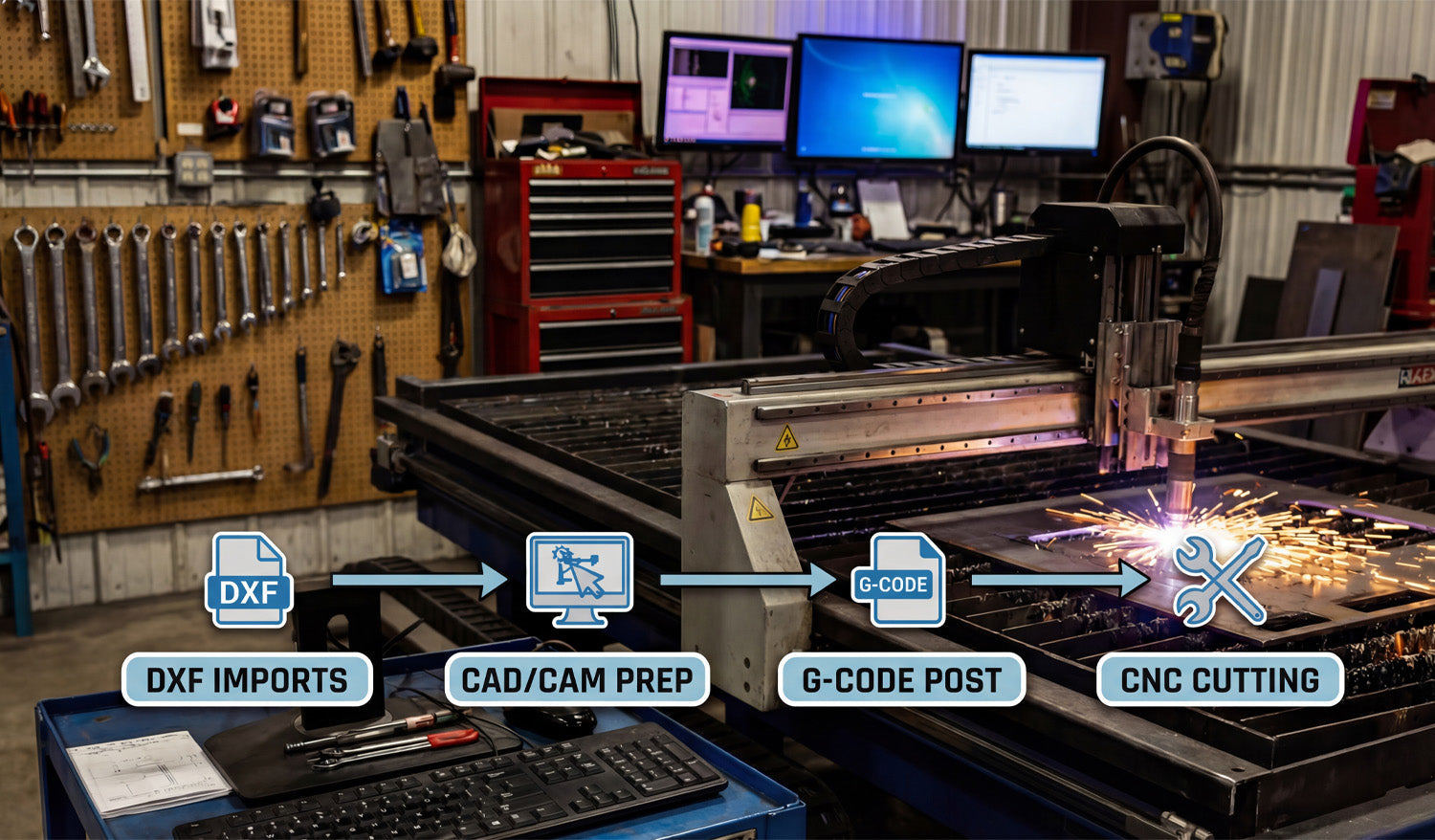
Choosing the best CNC software for importing and editing DXF files is key to a smooth workflow, clean toolpaths, and fast, profitable CNC cutting.
Why Your CNC Software Choice Matters for DXF Files
DXF files are the “bridge” between your design and your CNC machine. Good software opens, edits, and prepares DXF files cleanly. Poor software can distort geometry, change scale, or create messy toolpaths that waste time and material. When you choose the right CNC software, you spend less time fixing files and more time actually cutting parts.
The Main Types of CNC Software for DXF Work
When people say “CNC software,” they usually mean one of three things. Each type plays a different role in your DXF workflow.
1. CAD and 2D Drawing Software (for Creating and Editing DXF)
These tools are used to draw and edit the actual shapes inside your DXF files. They are perfect for creating new designs or cleaning up files you downloaded.
- Best for: Drawing parts, editing contours, adding text, scaling designs, fixing open paths.
- What to look for: Solid DXF import/export, snap tools, layer support, and basic node editing.
- Typical examples: 2D CAD programs and vector editors that can save to DXF.
If you spend a lot of time tweaking artwork or redrawing metal art, a comfortable CAD editor is essential.
2. CAD + CAM Suites (All-in-One Design and Toolpath)
CAD/CAM suites let you design parts and also generate toolpaths in the same environment.
- Best for: Shops that want one integrated solution from design to G-code.
- What to look for: Reliable DXF import, good 2D machining strategies, post processors for your controller, and clear simulation tools.
- Typical use: Import DXF, convert lines and arcs into profiles, pockets, and engrave paths, then post G-code directly for your CNC.
This kind of software is ideal if you want fewer moving pieces and a single program to handle most of your workflow.
3. 2D CAM Software (for Turning DXF into G-Code)
2D CAM programs focus on toolpath creation. You import DXF files that were drawn elsewhere, then define how the machine will cut.
- Best for: Plasma, laser, router, and water-jet jobs based on flat sheet material.
- What to look for: Easy inside/outside selection, kerf compensation, lead-ins, automatic nesting, and pierce control (for plasma and laser).
- Typical workflow: Import DXF → assign operations → simulate → post G-code.
If you already have a separate drawing tool, a strong 2D CAM program is often the most efficient way to process many DXF-based jobs.
Key Features to Look for in DXF-Friendly CNC Software
Regardless of brand, the best CNC software for DXF work shares a few important features.
- Robust DXF import: The software should handle different DXF versions without dropping curves, arcs, or layers.
- Control over units and scale: You should be able to choose millimeters or inches and confirm real-world size immediately after import.
- Layer management: Being able to map layers or colors to specific operations (cut, engrave, score, mark) saves a lot of time.
- Node and path editing tools: You need to join open paths, delete duplicates, simplify curves, and clean up noisy geometry.
- Nesting and layout tools: For sheet work, automatic nesting can dramatically reduce material waste.
- Post processors or machine profiles: The software should output G-code that matches your controller (Mach-type control, GRBL-based systems, proprietary controllers, etc.).
Best Software Options by Use Case
There is no single “perfect” CNC software for everyone. The best choice depends on the type of work you do and how comfortable you are with CAD/CAM.
For Simple 2D Metal Art and Signs
If you mainly cut signs, wall art, and decorative panels from DXF files:
- Use a lightweight CAD or vector program to edit and clean DXFs (fix gaps, scale, add tabs).
- Use a focused 2D CAM tool to handle lead-ins, kerf compensation, and nesting for your plasma or laser.
- Look for features like tabbing and automatic inside/outside detection to keep small pieces from tipping during cutting.
For CNC Router Work in Wood and Plastics
Router projects often combine profile cuts, pockets, and sometimes drilling:
- Choose CAD/CAM that handles DXF contours and can add pocketing and drilling operations easily.
- Make sure it supports tool libraries and lets you store feeds and speeds for your common bits.
- Simulation is especially helpful for multi-pass toolpaths and 3D surfacing.
For Laser Cutting and Engraving
Laser workflows demand clean vectors and simple control over power and speed:
- Use software that can import DXF and SVG reliably and map each color or layer to different power/speed settings.
- Look for tools to offset paths, create fine text, and manage engraving versus cutting passes.
- Good preview and time estimation can help you quote jobs more accurately.
Free vs Paid CNC Software for DXF Files
Both free and paid options can work well with DXF files; the right choice depends on your budget and how much time you want to invest in learning.
- Free or open-source tools: Great for beginners, hobbyists, and testing a workflow. They may require a bit more manual setup or a mix of several separate programs.
- Paid professional tools: Usually offer better integration, automation, technical support, and time-saving features like advanced nesting and post processors.
If you run a business, it often makes sense to use paid software once you know which features directly save you machine time and labor.
Example Workflow: From DXF Library to Finished Parts
Here is a simple example of how good CNC software fits into a DXF-based workflow:
- Download or create a DXF file: For example, a metal wall art design or panel pattern.
- Open it in your CAD/vector editor: Clean up any open paths, scale to final size, and organize layers.
- Import into CAM software: Assign inside and outside cuts, set lead-ins, kerf compensation, and cut order.
- Simulate: Check the path visually to make sure the machine follows the shapes you expect.
- Post G-code and cut: Send the job to your CNC machine, run a test on scrap, then cut production parts.
When both your DXF files and your CNC software are solid, this entire flow becomes fast and repeatable.
How to Choose the Best CNC Software for Your Shop
To pick the best software for importing and editing DXF files, ask yourself a few key questions:
- What do I cut most often: metal, wood, acrylic, mixed materials?
- Do I need simple 2D only, or do I also want 3D machining?
- Am I okay using separate tools for drawing and CAM, or do I prefer an all-in-one CAD/CAM suite?
- Does this software have a post processor or profile for my exact CNC controller?
- Is there a strong community, tutorials, and support so I can solve problems quickly?
If you can answer these questions clearly, you will quickly narrow down your options and find software that fits your machines, your workflow, and your budget.
Conclusion
The best CNC software for importing and editing DXF files is the one that gives you clean geometry, reliable toolpaths, and a workflow you actually enjoy using. Whether you choose a lightweight CAD tool plus a 2D CAM program, or a full CAD/CAM suite, focus on DXF import quality, editing tools, and solid post processors for your machine. With the right software in place—and a good DXF library—you can turn digital designs into real parts quickly, consistently, and profitably.




