

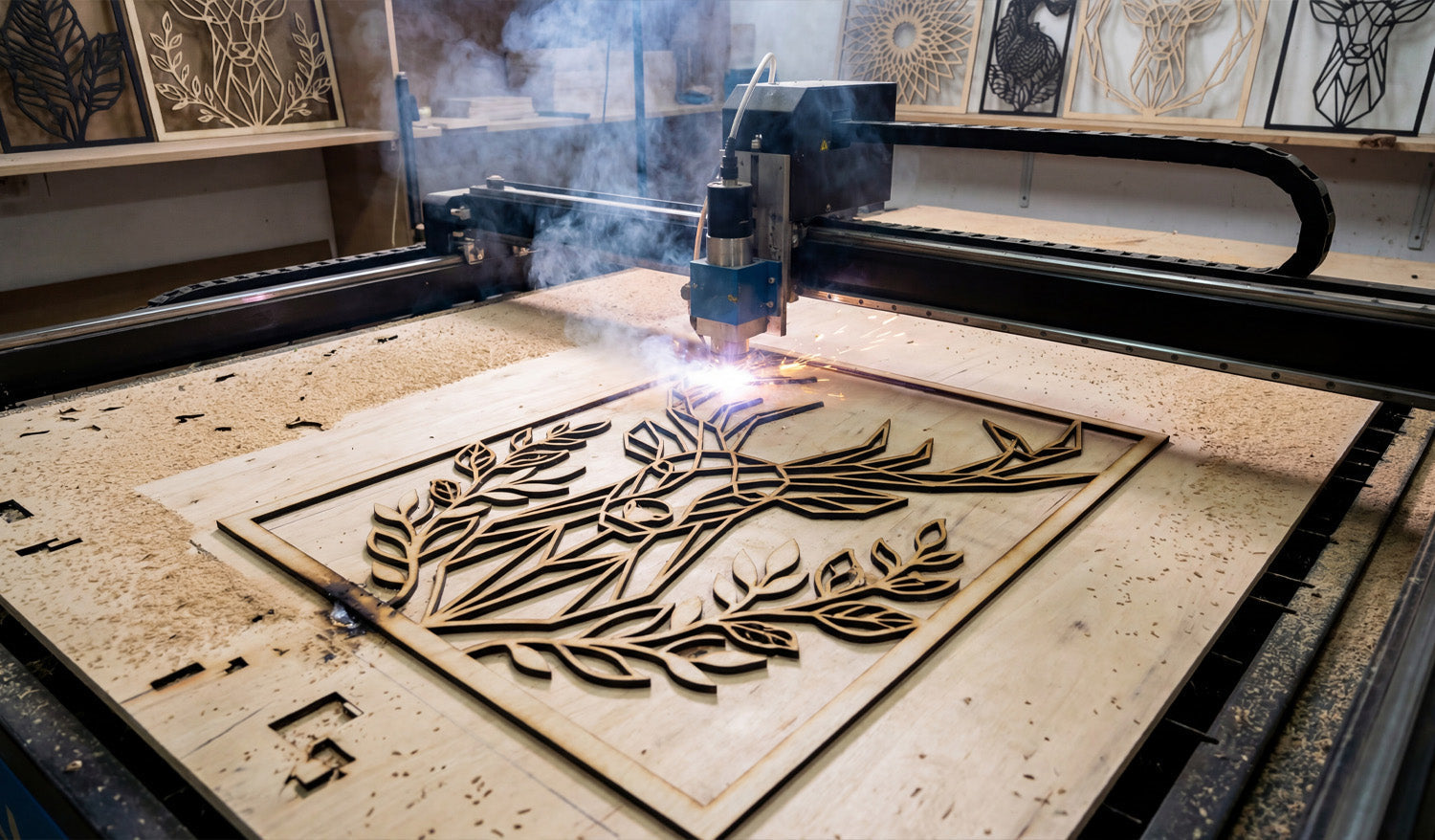
DXF files are one of the easiest ways to transfer a design from your computer to a CNC machine. This beginner-friendly guide explains, in simple terms, how DXF files work and why they are the foundation of many CNC workflows.
What Is a DXF File?
DXF stands for Drawing Exchange Format. It is a 2D drawing file that stores lines, arcs, circles, and shapes as precise vector data instead of pixels. In simple terms, a DXF file is a digital blueprint your CNC machine can understand.
Because DXF is widely supported by CAD (design) and CAM (toolpath) software, it has become the “universal” format for laser cutters, plasma tables, CNC routers, and many other machines.
How DXF Files Fit Into a CNC Cutting Workflow
Understanding the role of a DXF file becomes easier when you look at the entire CNC workflow:
- Design: Create a drawing in CAD software or download a ready-made DXF file.
- Import: Open the DXF file in your CAM or CNC control software.
- Toolpaths: Define how the machine will cut — inside, outside, engraving passes, speed, and power.
- Simulation: Preview the motion to make sure everything looks correct.
- Cutting: Send the job to the machine and cut the design out of metal, wood, acrylic, or other materials.
The DXF file is the bridge between your creative idea and the physical cutting process — the shared language between design and CNC hardware.
Why Are DXF Files So Popular in CNC Cutting?
Beginners often ask, “Why does everyone use DXF?” Here are the simple reasons:
- Compatibility: Nearly all CNC-related software can import DXF files.
- Vector-based: Clean lines and curves make DXF ideal for generating toolpaths.
- Flexible: You can scale, edit, or combine DXF designs without losing quality.
- Industry standard: Designers, machine builders, and fabrication shops trust the format.
For beginners, this means you can confidently learn CNC using DXF files, knowing they will work on most machines.
Which CNC Machines Use DXF Files?
DXF files are used across many CNC machine types. The most common include:
- Laser cutters: Great for thin wood, MDF, acrylic, leather, and metal marking. DXF defines both cutting and engraving paths.
- Plasma cutting tables: Ideal for steel, stainless steel, and aluminum sheets. DXF is used for signs, brackets, and metal artwork.
- CNC routers: Used for wood, plastics, foam, and some metals. DXF templates guide profiling and pocketing operations.
- Waterjet cutters: Perfect for stone, glass, composites, and thick metals. DXF provides the 2D cutting geometry.
No matter what machine you start with, learning how DXF files work will make your CNC journey much easier.
What’s Inside a Simple DXF File?
You don’t need to read DXF code manually, but it helps to understand the building blocks:
- Entities: Lines, arcs, circles, polylines, and text that form the shapes.
- Layers: Groups of geometry separated by purpose — such as cut, engrave, or construction lines.
- Units: The file may be drawn in millimeters or inches, which affects scale on import.
When you open a DXF file in CAD or CAM software, you’re essentially viewing the paths your CNC machine will eventually follow.
How to Open DXF Files as a Beginner
Even if you’re just getting started, you can open and inspect DXF files using many free or affordable tools:
- Most CAD programs can open DXF files for viewing, measuring, and editing.
- Many CAM or controller programs let you import DXF files and assign toolpaths directly.
- Simple DXF viewers allow zooming, panning, and printing without editing.
Your beginner goals should be: inspect the geometry, verify the scale, and learn how to send the file to your CNC software.
Beginner Tips for Working With DXF Files in CNC Cutting
Here are practical tips that help new users avoid common issues:
- Check the scale: After importing, measure a known feature to confirm the size is correct.
- Watch for open contours: Outlines should be closed loops — open paths can confuse CAM software.
- Remove duplicates: Delete any overlapping lines to prevent double-cuts.
- Use layers wisely: Keep cut, engrave, and reference geometry on separate layers for easier setup.
- Start simple: Practice on small, basic designs before moving to complex artwork or detailed panels.
- Test on scrap material: Use scrap for your first run to verify settings and toolpath direction.
Common Mistakes Beginners Make With DXF Files
Mistakes are normal, but you can avoid the most common ones:
- Assuming any picture is “CNC-ready”: JPG and PNG images must be converted to clean vector paths before they become usable DXF files.
- Ignoring material limits: Thin bridges or tiny holes may fail during cutting depending on the material.
- Skipping cleanup: Gaps, overlaps, and duplicates can cause strange machine behavior.
- No backups: Editing the only copy can result in losing the original design — always save versions.
Learning Faster by Using Ready-Made DXF Files
One of the easiest ways to learn is to start with pre-tested DXF designs that already work well on real CNC machines. Instead of spending hours drawing, you can focus on:
- Importing files into your CAM software.
- Learning how to adjust power, speed, pierce settings, etc.
- Understanding cut order, lead-ins, and kerf compensation.
Once you feel confident, you can start editing designs or creating your own DXF files from scratch.
Conclusion
DXF files form the backbone of many CNC cutting workflows, especially for laser, plasma, router, and waterjet machines. As a beginner, you don’t need to master every technical detail right away. But understanding what DXF is, how it fits into the CNC process, and how to spot basic issues will help you learn faster and avoid costly mistakes. With a bit of practice, working with DXF files will feel as natural as opening a regular document on your computer.




