

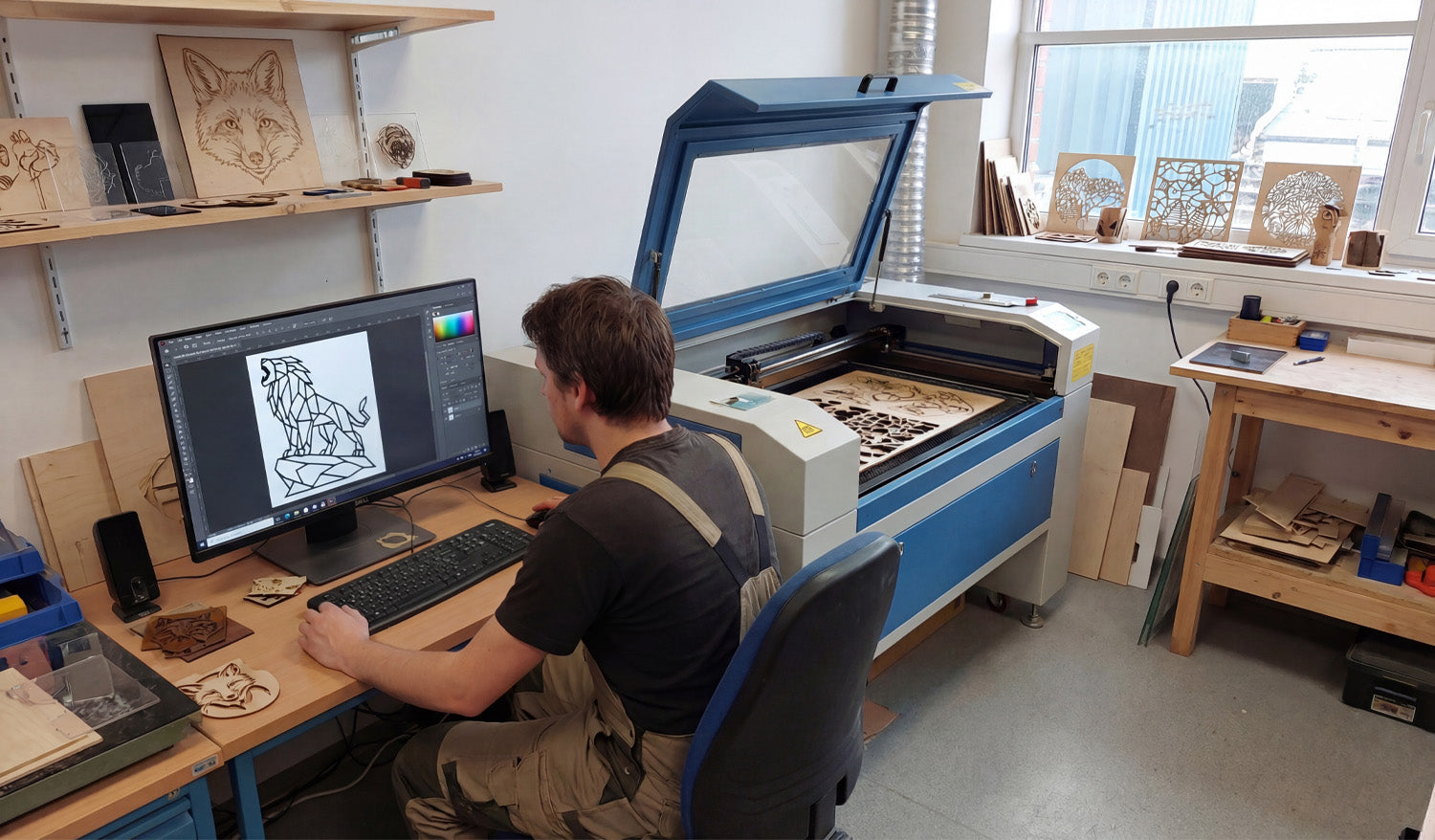
Learn how to convert images into DXF files for laser cutting so you can turn simple artwork into clean, precise vector paths your CNC laser can follow.
Why Convert Images to DXF for Laser Cutting?
Laser cutters work best with clean vector paths, not pixel-based images. When you convert a JPG, PNG, or other bitmap image into a DXF file, you give your laser a precise, math-based outline to follow. That means smoother cuts, better detail, and fewer surprises on the machine.
Whether you are creating custom wall art, logos, signage, or personalized gifts, knowing how to go from image to DXF is one of the most useful skills in any laser cutting workflow.
Raster vs Vector: Why Your Laser Prefers Vectors
Most pictures you find online are raster images (JPG, PNG, BMP). They are made of pixels and look great on screens, but your laser does not know how to “follow” pixels as cutting paths.
A DXF file is vector-based. It stores shapes as lines, arcs, and curves defined by coordinates. When you import a DXF into your laser software, it can translate those shapes directly into motion: move here, cut there, loop around this curve, and so on.
The conversion process you need is called vectorization or image tracing: turning pixels into vector paths.
Choosing the Right Image for Conversion
Not every image is a good candidate for laser cutting. Before you start, pick artwork that will convert cleanly to vectors.
- High contrast: Black-and-white or strong contrast images trace more cleanly than low-contrast photos.
- Simple shapes: Logos, icons, silhouettes, and line art are ideal. Busy photos with lots of detail often need heavy cleanup.
- Clear edges: Crisp outlines give your tracing tool something solid to follow.
- Enough resolution: A tiny, blurry image will produce messy vectors. Start with a reasonably large source image.
- Clean background: A plain background (white or solid color) makes it easier to isolate the subject.
Step-by-Step: How to Convert an Image to a DXF File
The exact buttons will vary between software tools, but the overall process is similar whether you use Inkscape, Adobe Illustrator, CorelDRAW, or a dedicated CAM tool.
Step 1: Prepare Your Image
- Open the image in your preferred editor (or directly in your vector program if it allows it).
- Convert it to grayscale or pure black and white to simplify the shapes.
- Increase contrast so the edges become more defined.
- Erase or crop out any background elements you do not want to cut.
Step 2: Import the Image into a Vector Program
- Create a new document in your vector software.
- Import or place the bitmap image onto the canvas.
- Make sure the image is selected before you start tracing.
Step 3: Trace the Image into Vectors
Most vector programs include an automatic tracing tool (often called Trace Bitmap, Image Trace, or similar).
- Run the trace tool with a simple setting such as “Black and White” or “Single Color.”
- Preview the result: you should see a solid silhouette or clear line drawing.
- If the result looks too noisy or jagged, adjust the threshold, smoothing, or detail settings and try again.
For very important designs, you can also trace by hand using line and curve tools. This takes longer but gives you maximum control over every shape.
Step 4: Clean Up the Vector Paths
After tracing, you will usually need to tidy up the vectors before exporting to DXF.
- Delete unwanted pieces: Remove stray points, tiny islands, or leftover background shapes.
- Simplify nodes: Too many small segments can slow your laser and create rough edges. Use “simplify” or manually merge nodes where possible.
- Join open paths: For cutting, outlines should be closed shapes. Use the join/close path tools to fix any gaps.
- Check overlaps: Overlapping shapes can cause double cuts. Decide if you need to merge, unite, or subtract them using pathfinder/boolean tools.
Step 5: Set Scale and Units
Before exporting to DXF, decide how big you want the final piece to be.
- Set your document units to millimeters or inches, depending on your laser workflow.
- Resize the vector artwork to the exact width or height you want on the material.
- Optionally add a simple reference rectangle (like 100 mm wide) to validate scale when you import into your laser software.
Step 6: Export the File as DXF
Once the vectors look clean and scaled correctly, you are ready to export:
- Go to File > Save As or Export.
- Choose DXF as the file format.
- Select a common DXF version (for example, R12 or R14) that your laser software supports well.
- Disable unnecessary options such as text conversion (if you already outlined text) or advanced entities you do not need.
Save the DXF and you now have a laser-friendly vector file ready for toolpath creation.
Common Mistakes to Avoid When Converting Images to DXF
- Using overly detailed photos: Full-color photos with complex shading do not convert cleanly. Convert them into simplified posterized or line-art versions first.
- Ignoring small gaps: Tiny open paths can cause the laser to leave uncut sections or behave unpredictably.
- Too many tiny details: Your laser has a minimum spot size and your material has a minimum strength. Very thin bridges can burn away or break.
- Wrong scale: Forgetting to check units can turn a 100 mm logo into a 10 mm micro-object—or the opposite.
- Skipping a test cut: Always test a new design on scrap before running a full production job.
Testing Your New DXF File on the Laser
After conversion, it is important to validate your DXF in the actual laser software and on your real material.
- Import the DXF and confirm the size matches your expectation.
- Assign cut and engrave layers according to your color or layer scheme.
- Use conservative power and speed settings for the first run.
- Check how small details, inner corners, and thin bridges behave on the material.
Once you are happy with the result, save the final settings along with the DXF so you can repeat the job easily in the future.
Building a Reusable Library of Laser-Ready DXF Designs
As you convert more images into DXF files, you will start to build your own internal library of designs that are tested and ready for production.
- Create folders by theme (animals, logos, ornaments, signs, and so on).
- Store both the original vector file (AI, SVG, etc.) and the final DXF export.
- Add notes or a small text file with recommended laser settings for each design.
- Back up your entire library so you never lose your best work.
Conclusion
Converting images into DXF files for laser cutting is a simple but powerful process: pick the right artwork, trace it into clean vectors, tidy the paths, set the scale, and export to DXF. With a bit of practice, you can turn almost any suitable image into a sharp, cut-ready design and build a professional library of laser projects that are ready to go whenever inspiration—or your next customer—arrives.




