

CNC & DXF Design Guides
CNC & DXF Design Guides
How to Create Multi-Layered DXF Files for CNC Laser Projects
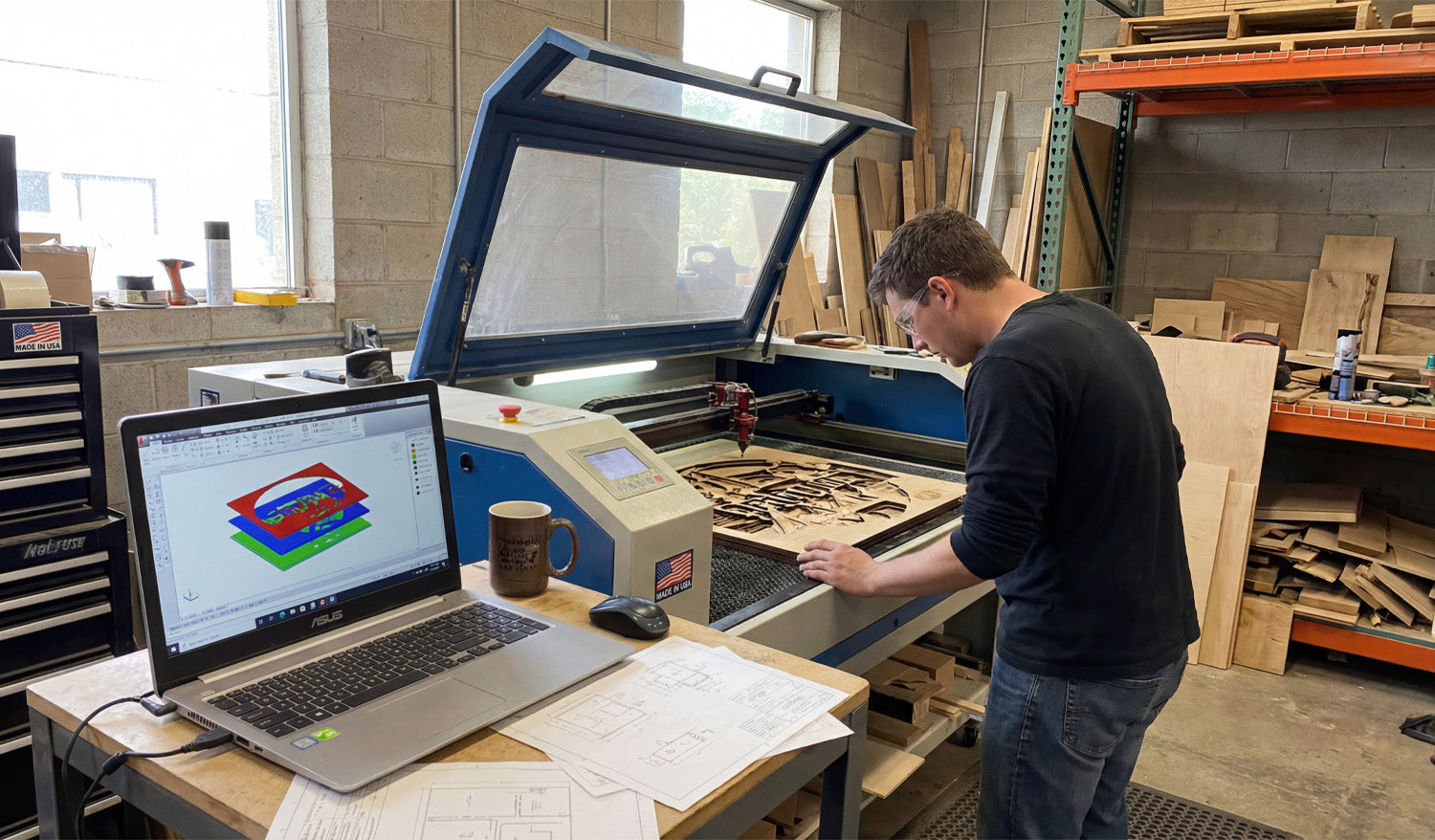
Creating multi-layered DXF files for CNC laser projects lets you control cutting, engraving, and marking in a clean, organized way so every pass of the laser is faster, safer, and easier to set up. What Is a Multi-Layered DXF File? A multi-layered DXF file is a drawing where different parts of your design are separated onto layers (and often colors). Each layer usually represents a different operation on the laser: One layer for through-cuts (outer shapes, holes). One layer for engraving (logos, text, fills). One layer for scoring or light lines (fold lines, guides). Optional layers for reference geometry (construction lines, dimensions). When you import this DXF into your laser software, you can assign different speeds, powers, and passes to each layer instead of selecting items one by one. Step 1: Plan Your Laser Operations First Before you open your CAD or vector software, think about what the laser actually needs to do. Will you only cut, or do you also need engraving and scoring? Which lines should be deep and dark, and which should be light guides? Do you have areas that must be filled (raster-like engraving) versus simple outlines? Turn that plan into a short list of operations. For example: Layer 1 – Cut (through-cut). Layer 2 – Engrave (medium power, slower speed). Layer 3 – Score (low power, high speed). Layer 4 – Reference (not sent to the laser). Step 2: Set Up Layers in Your CAD or Vector Software Next, create layers in your drawing program that match your operation plan. Create a new file with the correct units (mm or inches). Add layers with clear names like L-CUT, L-ENGRAVE, L-SCORE, and L-REF. Assign distinct colors to each layer (your laser software can use these colors as mapping targets). A simple, consistent naming style makes it much easier to reuse and scale your workflow across many projects. Step 3: Draw and Assign Geometry to the Correct Layers Now you can build your design and place each element on the right layer. Put all outer profiles and holes that should be fully cut through on the L-CUT layer. Place logos, decorative outlines, and text you want engraved (not cut through) on the L-ENGRAVE layer. Use the L-SCORE layer for fold lines, assembly guides, or light markings. Keep construction geometry—centerlines, alignment marks, dimensions—on L-REF so you can hide or delete it before export. If you move or copy elements, double-check that they stay on the correct layer; many programs quickly show the active layer in the interface. Step 4: Use Colors to Match Your Laser’s Settings Most CNC laser controllers let you map colors to different power and speed values. You can use this to make your DXF “machine-ready.” Assign a unique color to each major layer (for example, red for cut, blue for engrave, green for score). Use solid lines only (no fills or hatches) for vector operations. Keep the same color scheme across all projects so you can reuse settings in your laser software. Later, when you import the DXF, you simply tell the laser: “Red lines = cut, 80% power; Blue lines = engrave, 20% power,” and so on. Step 5: Manage Line Types and Stroke Weights Line thickness in the DXF does not change the physical kerf of the laser, but it can help you visually organize and avoid mistakes. Use a standard thin stroke for all cutting and engraving paths. Optionally use dashed or dotted lines on reference layers for construction or fold guides. Avoid heavy line weights that may export poorly or confuse your laser software. Keep in mind that most laser controllers only care about the vector path itself, not the stroke width—so the visual styling is just for your editing comfort. Step 6: Add Registration and Alignment Marks on Separate Layers For multi-step or multi-material projects, you may need registration marks to align different passes or colors. Create an L-REG layer just for alignment marks (small crosses or circles). Place the marks in consistent positions relative to your artwork (corners, midpoints, or known offsets). Decide whether these marks should be lightly engraved, cut, or only used for positioning and then removed. If you engrave and cut in separate jobs or on different materials, matching registration marks makes it much easier to keep everything lined up. Step 7: Organize Filled Areas vs Outlines Many CNC laser projects need both vector lines and filled engraving areas (for example, solid logos, badges, or backgrounds). Keep outlines and borders on their usual cut/engrave layers. For filled areas, create separate fill regions on an engraving layer or assign them a specific color. Some workflows convert these fills to hatch patterns or treat them as raster engravings at the CAM stage. Clearly separating outlines from fill regions in your DXF makes it easier to adjust engraving depth and texture without changing the main shapes. Step 8: Check Geometry Quality on Each Layer Before exporting, zoom in and make sure each layer is clean and laser-ready. Verify that all cut paths are closed loops with no gaps. Check that engraving and scoring lines do not have duplicate or overlapping segments. Reduce unnecessary nodes on curves so the laser head can move smoothly. Delete or hide reference layers that should not be sent to the laser (unless your software can ignore them by layer or color). A quick per-layer review saves you from surprises at the machine and reduces setup time in the laser software. Step 9: Export a Clean Multi-Layer DXF When your design is ready, it is time to export a DXF file that preserves your layer structure. Use Save As or Export and choose a DXF version compatible with your laser software (often R12/R14 works well). Make sure the option to include layers and colors is enabled. Give the file a clear name that hints at material and size, such as multi_layer_sign_acrylic_300mm.dxf. After export, open the DXF in a viewer or your laser CAM software to confirm that layers and colors carried through correctly. Step 10: Map Layers to Laser Settings in Your Controller In your laser control software, import the DXF and connect each layer or color to the correct cutting parameters. Assign cut layers to high power, medium speed, and through-cut mode. Assign engrave layers to lower power, slower speed, and appropriate line or fill mode. Assign score layers to very low power, fast speed for light surface marks. Decide whether registration or reference layers should be ignored, scored, or engraved lightly. Once you dial in good settings, save them as presets so the next multi-layer DXF with the same color scheme can be set up in seconds. Common Mistakes When Creating Multi-Layer DXF Files Watch out for these issues that can cause confusion or wasted material: Mixing operations on one layer: Putting cut and engrave lines together on the same layer makes setup slower and riskier. Inconsistent color usage: Changing which color means “cut” from project to project leads to mistakes. Forgotten reference geometry: Leaving dimensions or construction lines active in the DXF can create unwanted marks. Overlapping cut and engrave paths: Duplicate geometry on different layers can cause double passes in the same location. Practical Tips for Building a Reusable Multi-Layer Workflow Use the same layer names and colors across all projects. Create a template file with layers, colors, and line types preconfigured. Write a short legend in the notes: which layer = which operation and typical power/speed. Save “test coupons” in your library that use all your standard layers so you can quickly re-tune settings on new materials. Over time, this consistency turns multi-layer DXF setups into a fast and reliable part of your CNC laser workflow. Conclusion Creating multi-layered DXF files for CNC laser projects is one of the best ways to keep your designs organized and your jobs easy to run. By planning your operations, setting up clear layers and colors, assigning the right geometry to each layer, and exporting a clean DXF, you give your laser software everything it needs to apply precise power, speed, and order to every line. The result is less setup time, fewer mistakes, and laser projects that move smoothly from design to finished part.
Advanced Techniques for Editing DXF Files for CNC Applications
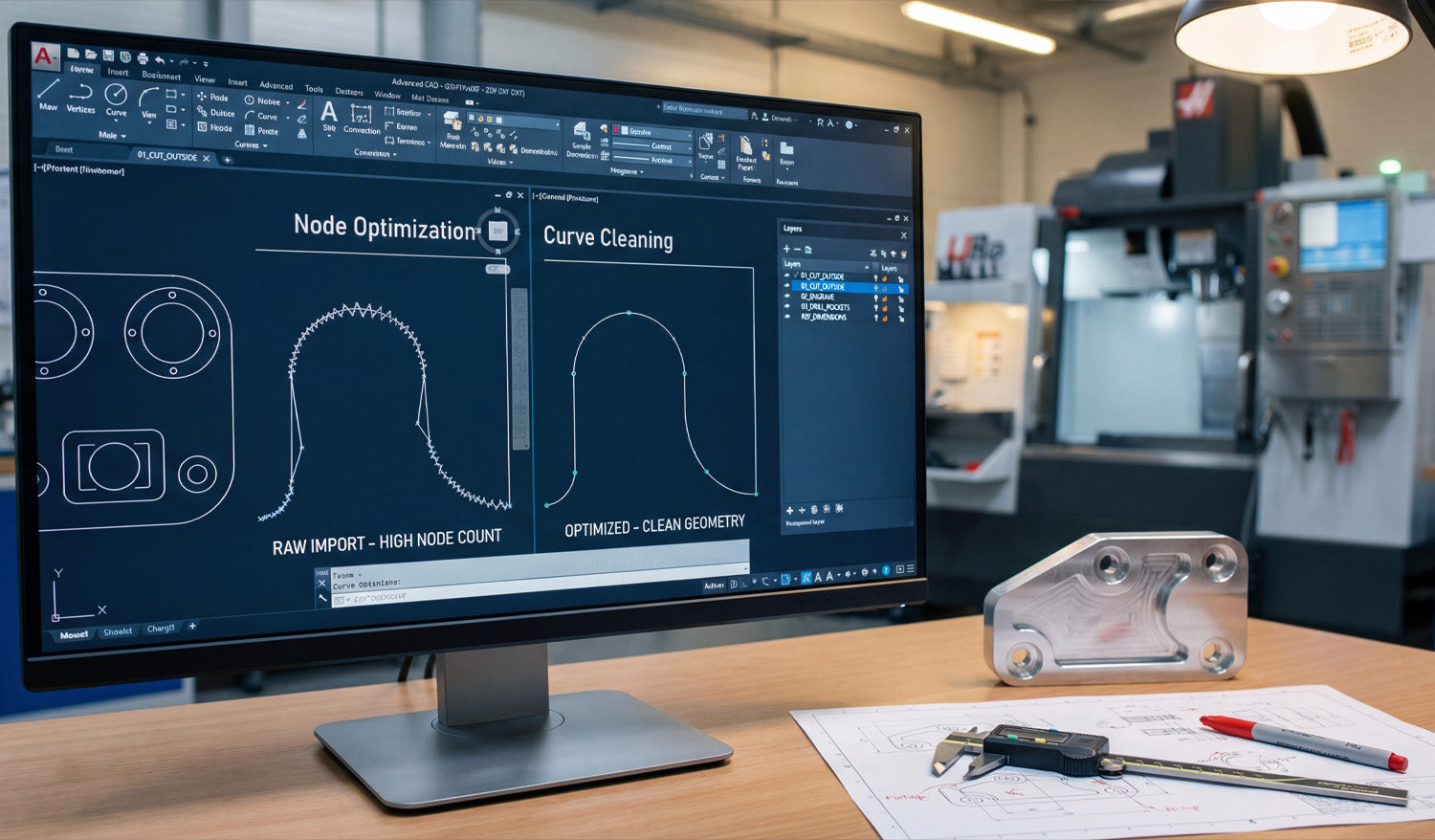
Advanced techniques for editing DXF files let you clean geometry, control detail, and tailor designs for specific CNC machines so you get faster setup, smoother toolpaths, and more reliable results. Why Advanced DXF Editing Matters for CNC Applications Basic DXF editing is enough for simple parts, but real CNC work—especially in production—demands more control. When you know how to refine and optimize DXF files at a deeper level, you can: Reduce CAM setup time and manual cleanup on every job. Improve edge quality by smoothing motion and cutting down on micro-moves. Create machine-specific versions that fit laser, plasma, router, or mill workflows. Standardize parts so they are easier to reuse, nest, and scale across projects. Think of advanced DXF editing as “pre-engineering” your files so every downstream step—CAM, nesting, and cutting—runs smoother. 1. Work Non-Destructively: Master vs Production DXF Files A key advanced habit is separating your “design master” from your “production-ready” DXF files. Master file: The clean, fully editable design (often CAD, AI, or SVG) where you keep rich detail and construction geometry. Production DXF: A simplified, optimized version tuned for a specific CNC process. Workflow tip: Always save a copy before making heavy optimizations, scaling, or deleting construction lines. Keep master and production files in separate folders so shop-floor edits never overwrite your originals. Use clear naming, such as panel_master.dwg and panel_laser_3mm_production.dxf. This non-destructive approach lets you experiment with aggressive optimizations while keeping a “clean source of truth.” 2. Advanced Layer Strategies and Naming Conventions Layers are not just for organization—they are powerful tools for advanced control of CNC operations. Operation-based layers: Separate CUT_OUTSIDE, CUT_INSIDE, ENGRAVE, MARK, and DRILL. Depth-based layers: For routing or milling, name layers by depth (for example, POCKET_Z-3, POCKET_Z-6). Machine-specific layers: Use LASER_ONLY, PLASMA_ONLY, or ROUTER_ONLY to enable or disable features per machine. Reference layers: Put datums, dimension lines, and setup aids on REF layers that never get cut. When you import a layered DXF into CAM, you can assign feeds, speeds, and cutting order to an entire layer in seconds instead of selecting geometry by hand. 3. Node Optimization and Curve Cleaning Many DXF files, especially those traced from images, are overloaded with nodes. This causes jerky tool motion and slow cutting. Advanced editing focuses on cleaning curves while preserving shape. Simplify curves: Use “simplify” or “fit curve” tools to reduce node count on arcs and splines. Replace polylines with arcs: Where possible, convert jagged polyline arcs into real circular arcs. Control tolerance: Adjust simplification tolerance so the curve stays visually accurate but lean. Target high-density zones: Zoom into corners and tight curves where extra nodes cause the worst slowdowns. Goal: fewer nodes, smoother motion, and less “stop–go” behavior from your CNC machine without changing the design’s look. 4. Using Boolean Operations for Smart Geometry Editing Boolean tools—union, subtract, and intersect—are essential for building and editing complex CNC-ready shapes. Union (combine): Merge overlapping shapes into a single contour for cleaner outer profiles. Subtract: Use shapes to carve holes, windows, and negative spaces out of a base plate. Intersect: Extract shared regions from overlapping designs to create new hybrid artwork. Advanced trick: design “tool blocks” (for example, standard slots, dogbone corners, decorative cutouts) and subtract or union them with main parts to build consistent, reusable geometry across products. 5. Parametric Editing with Constraints and Reusable Blocks Even though DXF itself is a 2D exchange format, you can use parametric CAD features before export to make editing faster and more precise. Constraints: Apply horizontal, vertical, parallel, and concentric constraints so geometry stays aligned when dimensions change. Dimensions: Drive important features (slot widths, hole patterns, panel sizes) with numeric parameters. Blocks or symbols: Turn common features (bolt circles, hinge cutouts, tabs) into reusable blocks that update everywhere when edited once. Workflow: edit your parametric sketch or block in CAD, then export a fresh DXF variant for each size, material thickness, or machine. 6. Precision Scaling and Unit Conversion Advanced CNC users often need to adapt designs between metric and imperial systems or scale designs for different product sizes. Use scale factors carefully: 25.4 for inch–mm conversion; verify after scaling with a reference dimension. Check hole and slot behavior: Small features may become too tight or too loose after scaling; adjust them manually. Maintain aspect ratio: For mechanical parts, scale uniformly; for art pieces, you can sometimes scale height and width separately. Add reference geometry: Keep a “this line = 100 mm” or “4 inch” helper so CAM users can confirm scale quickly. When scaling for different machines (for example, desktop laser vs large-format plasma), always re-check minimum feature sizes against kerf and material thickness. 7. Kerf-Aware Editing Before CAM Most CAM software handles kerf compensation, but advanced DXF editing can bake in smart geometry choices that make compensation more predictable. Thicken critical bridges: Edit thin connections so they remain strong even after kerf is applied. Offset inner shapes: For critical fit (tabs, slots, hinges), draw with known offsets that your CAM process expects. Standardize hole sizes: Use a small library of hole diameters tuned for your specific tool/kerf instead of random values. Pre-plan clearances: Add slight oversize or undersize in the DXF for press-fit, slip-fit, or glue-gap requirements. This kerf-aware editing reduces the amount of “trial and error” on the machine and gives you more predictable fits, especially for plasma and router work. 8. Topology Fixes: Bridging Islands and Removing Micro Geometry Complex artwork often contains tiny islands and fragile pieces that do not survive cutting. Advanced DXF editing cleans these up for real-world manufacturing. Add bridges: For laser and plasma art, connect floating islands (like the center of letters A, O, P) with small tabs. Remove micro cutouts: Delete extremely small shapes that will either burn away or fail to cut cleanly. Merge hairline gaps: Join very close edges into solid shapes to avoid creating unintended “hanging” pieces. Simplify textures: Replace extremely dense patterns with cleaner, bold shapes that still look good but cut reliably. These topology edits ensure your beautiful design can actually be cut, handled, and sold as a physical product. 9. Automating DXF Edits with Scripts and Macros If you handle large volumes of similar DXF files, automation is a powerful advanced technique. Batch cleanup: Use CAD macros or external scripts to remove duplicates, close gaps, and standardize layers on many files at once. Automatic naming: Generate consistent filenames that include size, material, and version numbers. Parametric exports: Drive multiple DXF exports from a single parametric model by looping through different dimension sets. Post-processing: Use scripts to convert between DXF versions or strip certain entities before CAM import. Even simple automation—such as a script that deletes hatches, images, and unused layers—can save hours when you manage a large CNC design library. 10. Creating Machine-Specific DXF Variants Different CNC machines have different strengths, and advanced users maintain separate DXF variants tuned for each one. Laser variant: Keeps finer detail, thin features, and engraving layers that a laser handles easily. Plasma variant: Uses thicker bridges, less fine detail, and slightly larger text and small features. Router variant: Adjusts inside corners for bit radius, adds dogbone cutouts where needed, and separates pockets by depth. Milling variant: Includes precise hole patterns, step pockets, and boundaries for roughing and finishing. Use shared master geometry and branch off into per-machine DXF files so each machine gets a version that plays to its strengths. 11. Building a Reusable DXF Editing Checklist Advanced workflows are consistent. A checklist ensures you do not miss critical edits when preparing DXF files. ✔ All profiles and pockets are closed (no gaps). ✔ Duplicate and overlapping lines removed. ✔ Node count optimized on curves and detailed regions. ✔ Layers named and structured by operation, depth, and machine. ✔ Kerf and minimum feature sizes considered for chosen material and process. ✔ Text, logos, and islands bridged where needed for cut-out designs. ✔ Unit and scale verified with a reference dimension. ✔ Master file saved separately from production-ready DXF. Over time, this checklist becomes part of your CNC “playbook” and keeps your whole team aligned on how DXF files should look before they reach the machine. Conclusion Advanced techniques for editing DXF files go far beyond basic drawing and trimming. By mastering node optimization, layered workflows, boolean operations, kerf-aware geometry, topology fixes, automation, and machine-specific variants, you turn every DXF into a precise set of instructions that your CNC machines can follow with speed and confidence. The payoff is huge: faster programming, smoother cuts, less scrap, and a professional-grade design library that supports serious CNC production.

