

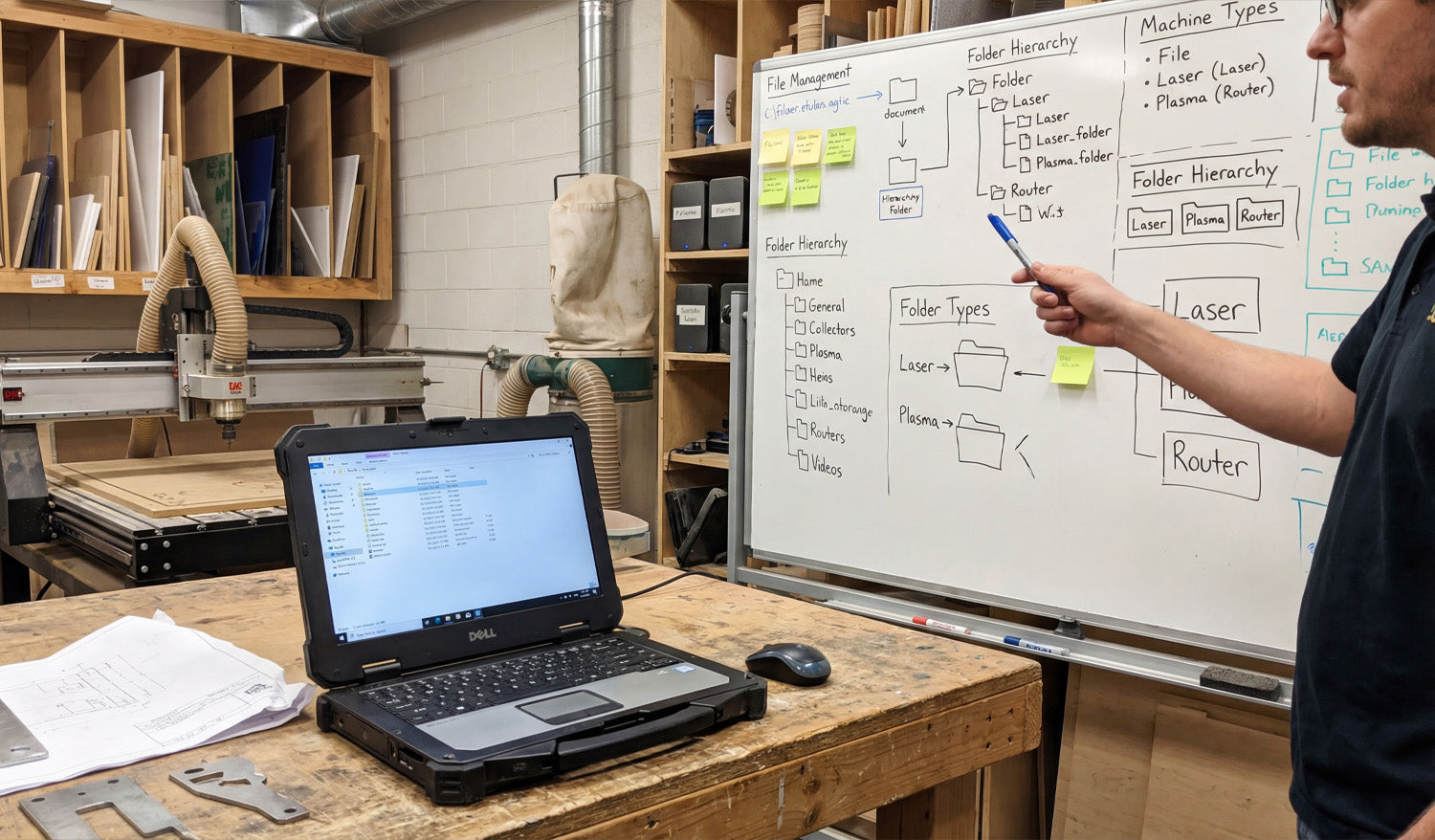
Well-organized DXF files can make your CNC shop feel faster and calmer. Instead of hunting through random folders, you always know where each design lives, which version is current, and which file is ready for which machine.
Why DXF Organization Matters More Than You Think
DXF files are the language your CNC machines speak. When they are scattered across hard drives with names like new_11_final.dxf, you waste time on:
- Searching for the “right” version before every job.
- Accidentally cutting outdated or untested designs.
- Duplicating work because you cannot find past projects.
A simple folder structure, clear file names, and a basic backup plan can remove most of this chaos and let you focus on cutting parts, not chasing files.
1. Start with a Simple, Repeatable Folder Structure
You do not need a complicated system—just one you can actually stick to. A good starting point for DXF files might look like this:
-
DXF Library
- Laser
- Plasma
- Router
- Mill
Inside each machine folder, group designs by use or style:
- Laser → Signs, Wall Art, Logos
- Plasma → Brackets, Yard Art, Fire Pits
- Router → Furniture Parts, Jigs, Inlays
Keep it logical and consistent. The test is simple: can someone else on your team find a file in under 30 seconds?
2. Separate “Master” Files from “Production” Files
One of the best habits you can build is treating design and production files differently.
- Master files: Your fully editable originals (CAD, AI, SVG). These may contain construction lines, notes, and extra detail.
- Production DXF: Clean, simplified files ready for import into CAM or your CNC controller.
Example folder layout:
-
DXF Library
- Master
- Production
This approach lets you edit and experiment without breaking the file that the shop floor uses every day.
3. Use Descriptive, Machine-Friendly File Names
File names are tiny labels that can carry a lot of useful information. A good DXF name answers at least three questions:
- What is it?
- What size is it?
- What material or thickness is it for?
For example:
wolf_wall_art_600mm_steel3mm_v2.dxfbracket_L_100x50_aluminum5mm_v1.dxf
You can also add the target machine when it matters:
panel_pattern_large_laser_only_v3.dxfbracket_set_router_plywood18mm_v2.dxf
Clear names reduce questions and miscuts, especially when you run multiple machines and materials.
4. Version Your DXF Files Before Things Get Messy
Designs evolve. A joint is too tight, a slot is too loose, or a logo changes. If you do not manage versions, your DXF folder slowly becomes a puzzle.
- Add a simple version tag: v1, v2, v3 at the end of the name.
- Only mark one file as the current production version (for example, in a text note or by moving old versions to an Archive subfolder).
- When a change is made because of a real test cut, always bump the version number.
Small shops often skip versioning until they regret it. Start early while your library is still manageable.
5. Organize by Machine, Material, and Thickness
If you cut the same design on different machines or materials, give each combination its own home.
- By machine: Keep separate folders for Laser, Plasma, Router, and Mill.
- By material: Inside each, use folders for Steel, Aluminum, Stainless, Plywood, Acrylic, etc.
- By thickness: For example, Steel_3mm, Steel_6mm, Birch_12mm.
Why? Because kerf, fit, and toolpaths often change with thickness. Keeping these variants separated avoids mixing “steel 3 mm” cut files with “steel 10 mm” jobs.
6. Keep Reference Material and CAM Files Nearby
DXF files rarely live alone. They are usually part of a small “bundle” for each project.
- DXF folder: Clean geometry ready for CAM.
- CAM folder: Toolpath files or project files for your CAM software.
- Previews: JPG or PNG images that show what the final part should look like.
- Notes: A text file with best-known feeds, speeds, or power settings.
A simple structure like this turns each job into a self-contained package you can pick up months later with minimal guesswork.
7. Use Cloud or NAS Storage for Shared Access
If more than one person is using your DXF library, local storage on a single PC quickly becomes a bottleneck.
- Use a shared network drive or NAS so all shop computers access the same “truth.”
- Consider a cloud-synced folder for backup and remote access.
- Limit who can edit “Master” folders; give operators read-only access where appropriate.
This reduces the risk of “secret” copies living on USB sticks and laptop desktops where they are never updated or backed up.
8. Back Up Your DXF Library Like It Is Business-Critical (Because It Is)
Your DXF files represent hours or years of work. Treat them like an asset, not an afterthought.
- Set up automatic daily or weekly backups of your DXF and CAM folders.
- Keep at least one backup off-site or in the cloud in case of fire, theft, or hardware failure.
- Test your backup by restoring a sample project occasionally.
A good backup policy means a failed hard drive is an inconvenience, not a disaster.
9. Use a Simple Index or Catalog for Large Libraries
Once your DXF collection grows beyond a few hundred designs, a basic catalog makes life easier.
- Create a spreadsheet or simple database listing:
- File name
- Category (animals, signs, brackets, fixtures, etc.)
- Target machine and material
- Notes about sizes or popular variations
- Add a column for “approved for production” so you know which designs have been test cut.
This does not have to be fancy. Even a basic index helps you remember what you already have before you redraw the same idea again.
10. Standardize Your Workflow for New DXF Files
Finally, make sure every new file enters your system the same way. For example:
- Design or edit in CAD/vector software.
- Save the editable master in the Master area.
- Export a clean DXF to the correct Production folder (Laser/Plasma/Router/Mill).
- Rename according to your file-naming rules.
- Run a test cut, then update the version number if you make adjustments.
When this process is documented and followed by everyone, your DXF library stays organized automatically instead of slipping into chaos over time.
Conclusion
Organizing and storing DXF files for CNC machines is not about perfection; it is about consistency. A clear folder structure, descriptive file names, simple version control, shared storage, and regular backups turn your DXF collection into a powerful, reliable asset. With a little discipline now, you will spend far less time searching for files and far more time running profitable CNC jobs.




