

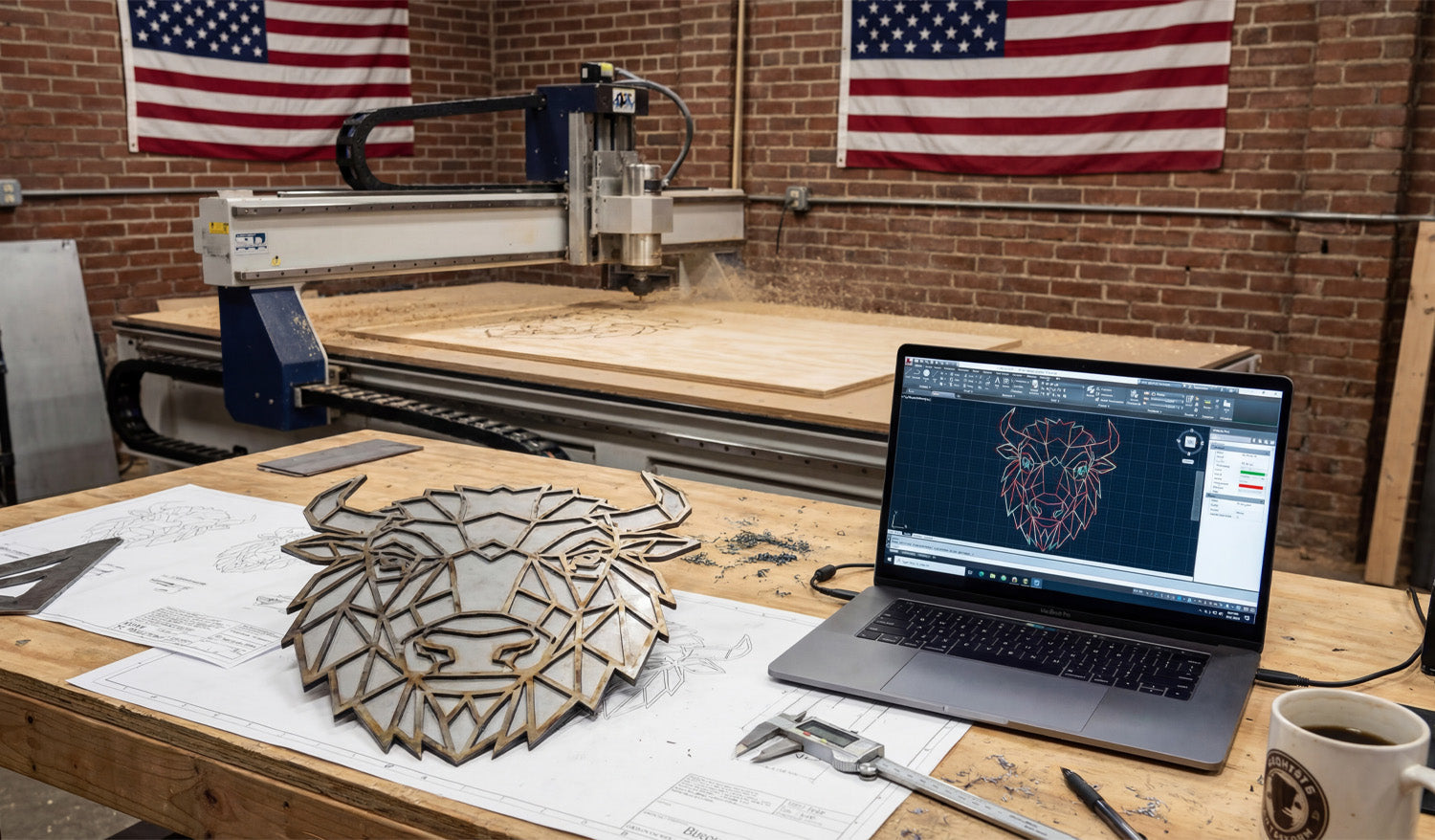
Mastering DXF files is the fastest way to improve your CNC design success, cut cleaner parts, and move from idea to finished product with less stress, less scrap, and more profit.
Why DXF Files Are So Important for CNC Design
DXF (Drawing Exchange Format) is the universal language of 2D CNC work. Whether you run a laser, plasma, router, or milling machine, DXF files act as the bridge between your design software and your CNC controller.
When your DXF files are clean, organized, and designed with the machine in mind, you get:
- Smoother toolpaths and better edge quality.
- Shorter setup and programming time.
- More predictable results from job to job.
- Fewer surprises on the machine and less rework.
Tip 1: Start with a Clear Design Intent
Before you draw a single line, define what you are trying to achieve with the part or artwork.
- Function: Is it decorative wall art, a structural bracket, a sign, a fixture, or a part for assembly?
- Machine type: Laser, plasma, router, or mill—each has different strengths and limits.
- Material: Steel, stainless, aluminum, MDF, plywood, acrylic, or something else?
- Finish: Will the part be painted, powder-coated, polished, or left raw?
A clear design intent helps you make smarter choices about feature sizes, text thickness, joint types, and overall detail level in your DXF file.
Tip 2: Work in the Right Units from the Start
Unit issues are one of the most common hidden problems in CNC design. Get this right at the beginning.
- Choose millimeters or inches as your standard and stick to it in both CAD and CAM.
- Set your design template to the correct units so every new DXF starts correctly.
- Include at least one known dimension (for example, a 100 mm or 4 inch reference) to verify scale after import.
Good DXF files open at the correct size with no guessing, making life easier for whoever runs the machine.
Tip 3: Keep Geometry Clean, Closed, and Connected
Clean geometry is the foundation of CNC success. Dirty DXF files cause broken cuts, strange toolpaths, and wasted time.
- Close all profiles: Outer shapes and inner cutouts should be fully closed loops with no gaps.
- Remove duplicate lines: Delete overlapping paths so the machine does not cut the same line twice.
- Eliminate stray elements: Get rid of tiny segments, points, and construction marks that are not part of the final cut.
- Use polylines: Combine separate segments into continuous polylines where possible for smoother motion.
Spending a few minutes cleaning your DXF before CAM can save you hours of troubleshooting on the CNC table.
Tip 4: Control Node Count for Smooth CNC Motion
Too many nodes (control points) make your machine stop and start constantly, leading to rough edges and slower cuts.
- Use simplify or optimize curve commands to reduce node density on curves.
- Convert “stair-stepped” curves or auto-traced outlines into smooth arcs or splines.
- Target areas with heavy detail: tight corners, curves from traced images, and decorative textures.
Your goal is to keep the visual shape the same but let the CNC machine follow it with fewer, smoother moves.
Tip 5: Design with Your CNC Machine in Mind
Each type of CNC machine has its own design rules. Mastering DXF means respecting those limits from the start.
- Laser: Can handle fine detail, but very thin bridges in thin material may burn away.
- Plasma: Has a wider kerf; avoid tiny holes and micro text, and use thicker bridges.
- Router: Uses round bits; inside corners must have a radius or dogbone/T-bone relief.
- Milling: Needs tool access; deep pockets and narrow slots must match your tool length and diameter.
A DXF that is “machine-aware” is much easier to run at speed without breaking tools or losing detail.
Tip 6: Use Layers to Separate Operations
Layers turn a messy drawing into a structured CNC plan. They help CNC operators see exactly what each line is meant to do.
- Create layers like CUT_OUTSIDE, CUT_INSIDE, ENGRAVE, SCORE, and HOLES.
- Place through-cuts on one layer and engraving or marking on another.
- Use a reference layer for centerlines, dimensions, and datums that should never be cut.
- Assign distinct colors to layers if your CAM or controller uses color mapping.
When the DXF reaches CAM, you can map entire layers to speed, power, and depth settings with just a few clicks.
Tip 7: Respect Kerf, Minimum Feature Size, and Material Strength
Designing without thinking about kerf and material behavior is a fast way to create beautiful but unusable parts.
- Know your kerf width (cut width) for each process and material.
- Make sure bridges, webs, and thin features are wider than the kerf and strong enough for handling.
- Leave enough material around holes and slots so parts do not warp or break.
- For joints, design slots and tabs with realistic tolerances so they fit after kerf compensation.
Good DXF design is about balancing visual detail with what the material and machine can reliably produce.
Tip 8: Make Text and Logos CNC-Friendly
Text and logos often cause problems in CNC design because they start as fonts or bitmaps rather than clean vectors.
- Convert text to curves/outlines before exporting to DXF so it does not depend on missing fonts.
- Use stencil-style lettering for cut-out text so inner islands (A, O, P, R, D, etc.) do not fall out.
- Keep stroke widths thick enough for your material and machine process.
- For logos, clean up traced artwork by removing unnecessary nodes and small, fragile shapes.
Well-prepared text and logos give you clear engravings and cut-outs that hold their shape and stay readable.
Tip 9: Build and Organize a Reusable DXF Library
One of the biggest “pro moves” in CNC design is building your own DXF library instead of starting from zero every time.
- Save proven parts—tabs, brackets, gussets, hinges, logos—as separate DXF files or blocks.
- Organize them by category: Structural, Decorative, Fixtures, Logos, Panels, and so on.
- Use clear naming: include size, material, and version where it makes sense (for example, hinge_80mm_steel_v2.dxf).
- Keep notes or a text file with best-known settings and common uses for each design.
Over time, this library becomes a powerful asset you can reuse across projects, saving huge amounts of design and CAM time.
Tip 10: Test on Scrap and Refine Your DXF Designs
No matter how good your DXF looks on screen, the real proof is on the machine.
- Cut small samples on scrap material before committing to full sheets or production runs.
- Check fit, edge quality, and strength of joints, bridges, and small features.
- Adjust the DXF where needed: widen slots, thicken weak areas, simplify details that do not cut well.
- Save improved versions of your DXFs with new version numbers so you always know which one works best.
Think of each test as an investment in a stronger, more reliable design that will serve you many times in the future.
Tip 11: Avoid the Most Common DXF Mistakes
To master DXF files for CNC, stay away from these classic pitfalls:
- Designing “for the screen” only: It looks great in CAD, but ignores kerf, material thickness, and machine limits.
- Leaving messy geometry: Open paths, duplicates, and stray lines that cause unexpected cuts.
- Ignoring layers: Putting everything on “Layer 0” and making CAM setup slow and confusing.
- Using raw auto-traced images: Outlines full of noise and micro segments that kill cutting speed.
- No unit or scale check: Importing a part and discovering it is 10× too small or too large after programming.
Tip 12: Standardize Your DXF Workflow
Finally, turn your best practices into a repeatable process so every new design starts strong.
- Create a DXF template file with layers, colors, and units preconfigured.
- Use a short checklist before export: closed paths, no duplicates, correct scale, simple curves, proper layers.
- Document your internal standards for bridge width, minimum feature size, and text height per material.
- Train everyone on your team to follow the same steps so files are consistent regardless of who designed them.
This kind of standardization is what separates hobby-level work from a professional CNC design and manufacturing workflow.
Conclusion
Top CNC design success is not about having the most powerful machine—it is about feeding that machine well-built DXF files. By starting with clear design intent, keeping geometry clean, respecting your machine and material limits, using layers wisely, and building a reusable DXF library, you turn each drawing into a reliable CNC blueprint. Mastering DXF files is how you move from guesswork and rework to predictable, profitable CNC projects on every job.




