

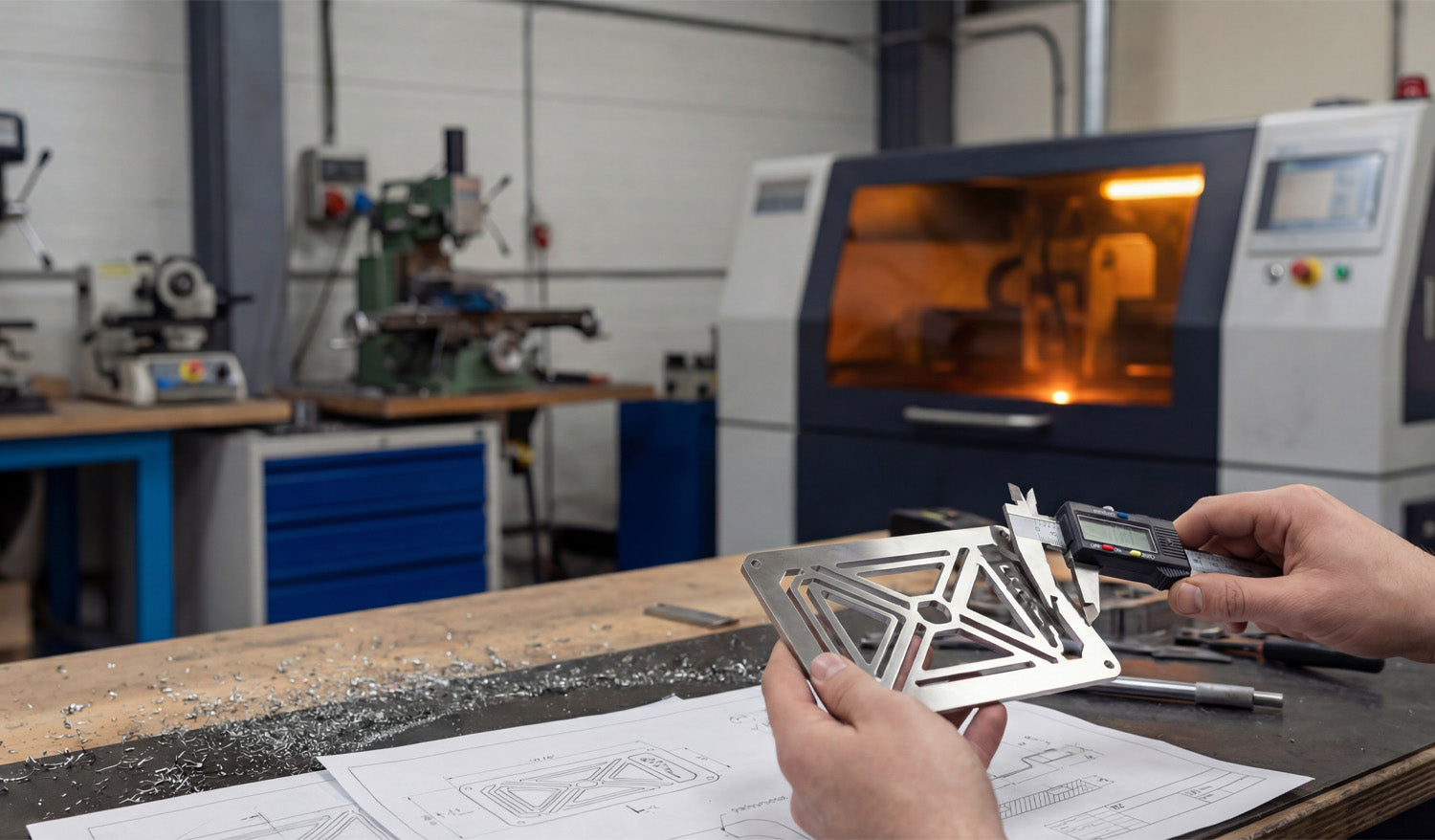
A good DXF file for CNC laser cutting should be clean, closed, correctly scaled, and designed with real laser limits in mind; anything less will cost you time, money, and material.
Why DXF File Quality Matters for Laser Cutting
Your laser cutter is only as good as the file you feed it. Even with a powerful machine and a good lens, a messy DXF can cause:
- Jagged or rough edges.
- Small details burning away or falling out.
- Double cuts and heat marks from overlapping lines.
- Wrong part sizes due to unit or scale mistakes.
- Extra setup time fixing geometry instead of cutting.
When you know what to look for in a DXF file, you can quickly tell if a design is laser-ready or if it needs cleanup before you hit “Start.”
1. Clean, Continuous Vector Geometry
A strong DXF file is built from clean vector paths, not random segments and noise.
- Lines, arcs, and polylines: The design should use proper vector entities, not thousands of tiny line fragments.
- Smooth curves: Arcs and curves should look smooth at any zoom level, without “stair-stepping.”
- No broken edges: Profiles should flow logically without strange kinks or corners where there should be smooth curves.
If the design was auto-traced from a low-resolution image, you will often see noisy geometry and too many nodes. That is a warning sign of trouble on the laser.
2. All Cut Paths Are Fully Closed
For laser cutting, most outer borders and inner cutouts must be closed loops. Open shapes can confuse the software and cause missing cuts or strange toolpaths.
- Outer profiles: The main shape of the part or artwork should be one continuous loop.
- Inner cutouts: Holes, letters, and internal windows must also be closed paths.
- No micro gaps: Tiny gaps between endpoints can be hard to see, but they break the loop.
When inspecting a DXF, zoom in on corners and intersections. If you see lines that “almost” meet, the file needs repair before it is truly laser-ready.
3. No Duplicate or Overlapping Lines
Duplicate lines are a silent killer in laser cutting. They cause the laser to cut the same path twice, which:
- Adds extra heat and burn marks.
- Slows down your job.
- Can cause narrow bridges or details to fall out.
A good DXF file should:
- Have only one line for each cut path.
- Use clean, non-overlapping outlines for each shape.
- Avoid stacked borders (no “double outlines” sitting on top of each other).
Many CAD programs offer a “remove duplicates” or “overkill” command. If you are not sure a DXF is clean, run this check before importing into your laser software.
4. Correct Units and Realistic Scale
A good DXF will open at the expected size without guesswork. File creators should design with clear units and realistic dimensions.
- Units declared: The design should be drawn in either millimeters or inches and documented as such.
- Reasonable size: A wall art DXF that imports as 3 mm wide or 30 meters wide is clearly wrong.
- Check with a known feature: Designs with a known dimension (for example, 100 mm width) are easier to verify.
When you open a DXF for laser cutting, always measure a key feature. If the size is off by a factor of 10 or 25.4, you have a unit or scale problem to fix.
5. Laser-Friendly Detail Level
Not all detail that looks good on screen will survive real laser cutting. A good DXF balances visual complexity with what a laser can actually produce in your chosen material.
- Minimum feature size: Thin bridges, narrow gaps, and tiny holes must be wider than your laser kerf and strong enough for handling.
- Material thickness ready: Details that work in 3 mm steel might be too fragile in 1 mm stainless or thin wood.
- Readable text: Letters should be large enough and thick enough to stay legible after cutting and finishing.
Good DXF designers think about material and laser limitations up front. If the file is packed with ultra-thin lines and micro cutouts, expect problems unless you scale it up or simplify.
6. Smart Use of Layers and Colors
High-quality DXF files often use layers (and sometimes colors) to separate different operations.
- Cut vs engrave: Outlines for through-cuts are on one layer; engraving or scoring paths are on another.
- Reference geometry: Construction lines, dimensions, and notes are placed on a non-cutting layer.
- Optional features: Some designs include alternate options or cut levels on separate layers that you can turn on or off.
This structure saves time when you import the file into laser software. You can easily map each layer to different power, speed, or line type settings instead of selecting shapes one by one.
7. Reasonable Node Count and Smooth Paths
A DXF full of thousands of tiny nodes slows the machine and can create jittery cuts. A good file keeps node count under control.
- Simplified curves: Paths are smooth and use just enough nodes to describe the shape accurately.
- No noisy outlines: Auto-traced artwork should be cleaned up so outlines do not wiggle or vibrate visually.
- Efficient motion: Fewer nodes means the laser head can move at more consistent speed, improving edge quality.
When evaluating a DXF, select a curve and look at its control points. If you see a dense forest of nodes everywhere, the design will likely benefit from curve optimization.
8. Logical Origins and Positioning
Good DXF files are easy to place on the laser bed and nest with other parts.
- Clear origin: The design is placed near the 0,0 origin instead of being miles away from the coordinate system.
- Centered or aligned: Parts are arranged logically, often centered or aligned to an axis for easy rotation and positioning.
- No random offsets: The file does not open with the geometry far off to one corner of the view.
Clean positioning makes it faster to drop the design into your material layout, especially if you are nesting multiple DXF files on the same sheet.
9. Tested and Proven Designs
The best DXF files for laser cutting are not just “pretty” drawings; they are designs that have been cut and refined based on real-world results.
- Cut-tested: The file’s creator has actually cut the design and fixed weak areas or problem details.
- Stable bridges: Hanging elements, letters, and small features are supported by well-placed bridges or tabs.
- Good fit: For mechanical parts, holes and slots have been adjusted for kerf and material tolerances.
If you are building your own library, consider taking notes every time you cut a new DXF: which details worked, which failed, and what changes improved the next version.
10. Legible, Connected Text and Lettering
Text is one of the most common problem areas in laser DXF files. A good file handles lettering correctly.
- Stencils for inner islands: Letters like A, O, P, R, and D need bridges so the inner pieces do not fall out.
- Enough stroke width: Fonts are thick enough to cut cleanly and survive handling.
- Converted to curves: Text is converted to vectors (outlines) rather than relying on missing fonts on another computer.
When you open a DXF, zoom in on the text. If inner islands are floating with no support, the design is not truly laser-ready.
11. No Unwanted Fills, Hatches, or Images
Laser cutters care about paths, not fills or bitmaps. A good DXF keeps the file clean.
- No bitmap images: JPG or PNG images are not embedded as “background art” inside the DXF.
- No complex hatches: Hatch patterns may look nice in CAD but can confuse CAM software or slow it down.
- Vector-only: All cutting and engraving elements are vector paths that the laser can follow.
If a DXF is full of shading, fills, and non-vector elements, expect to do extra cleanup before it will work correctly on the laser.
Quick Checklist: Is This DXF Good for CNC Laser Cutting?
Before you send a job to your laser, use this short checklist:
- ✔ All cut paths are closed loops (no gaps).
- ✔ There are no duplicate or overlapping lines.
- ✔ The size and units are correct and realistic.
- ✔ Detail level fits your material thickness and laser kerf.
- ✔ Layers clearly separate cut, engrave, and reference geometry.
- ✔ Curves have a reasonable node count and look smooth.
- ✔ Text uses stencil-friendly, connected lettering where needed.
- ✔ There are no unnecessary fills, hatches, or bitmap images.
Conclusion
A good DXF file for CNC laser cutting is more than just a nice drawing; it is a clean, closed, scalable set of vector paths designed with real laser behavior in mind. When you know what to look for—closed geometry, no duplicates, correct scale, laser-friendly details, smart layering, and tested design choices—you can quickly judge whether a file is ready for the machine or needs work. Investing a little time in checking and improving your DXF files pays off in faster setups, cleaner cuts, less scrap, and more reliable results on every laser job you run.




