

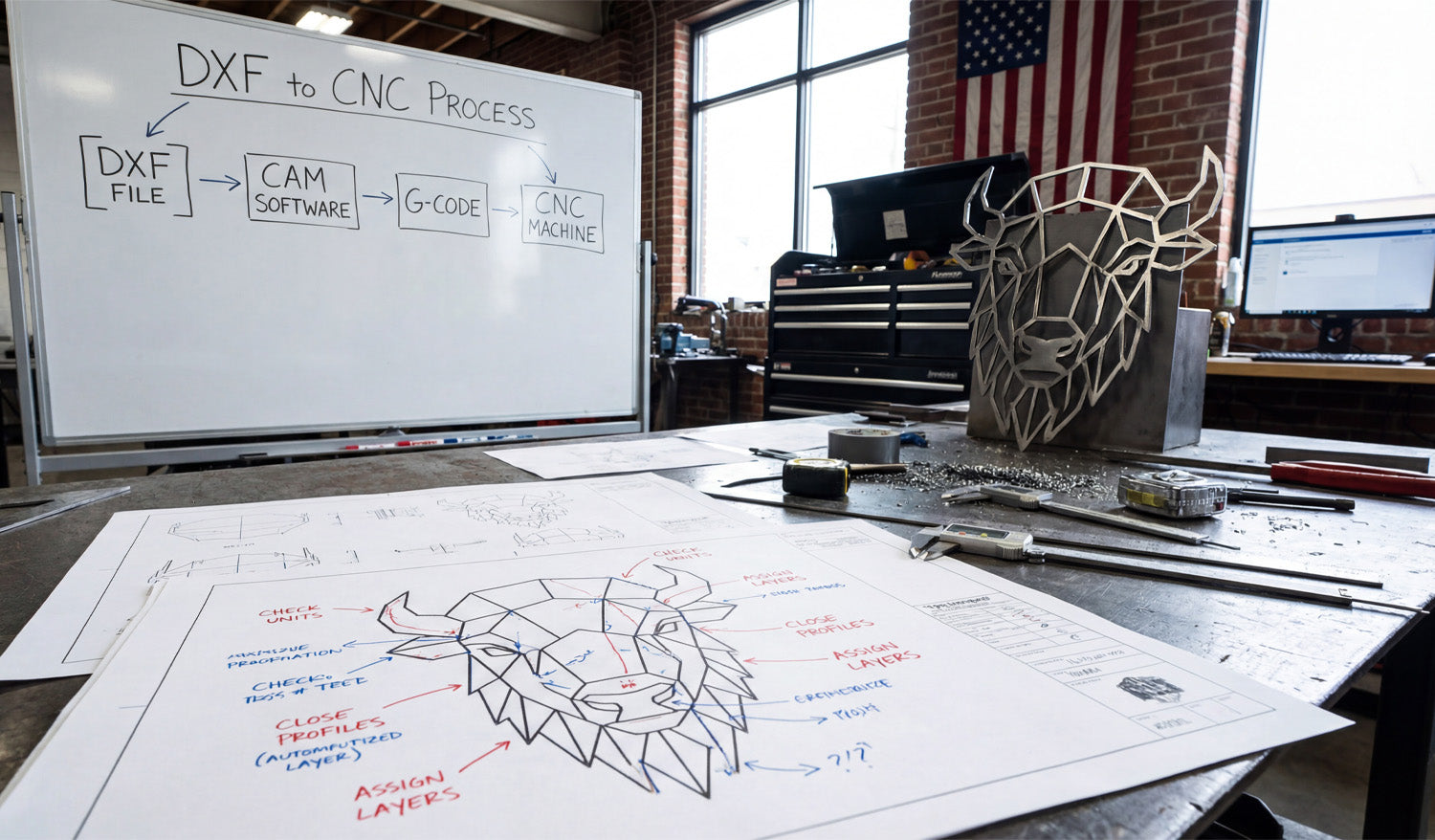
Creating a stunning piece of metal art, like the geometric bison head standing proudly on the workbench in our latest photo, doesn't start with the spark of a plasma torch or the spin of a router bit. It starts long before that, with a clean digital file and a solid understanding of the workflow. Many beginners get intimidated by the technical jargon, but as the whiteboard in our shop demonstrates, the path from a digital concept to a physical object is actually a logical, four-step journey. Whether you are running a hobbyist garage shop or a commercial fabrication business, mastering the transition from a DXF file to a finished product is the single most important skill you can learn to turn raw material into profit.
The 4-Step Workflow: Decoding the Whiteboard
If you look at the whiteboard in the background of our workshop image, you will see the holy grail of CNC machining simplified into four boxes. Let’s break down exactly what this "DXF to CNC Process" means for you.
- 1. DXF File: This is your blueprint. It is a 2D vector drawing that defines the geometry of your part. Without a clean DXF, nothing else matters. This is where DXF Files for CNC comes in, providing you with ready-to-cut designs.
- 2. CAM Software: Computer-Aided Manufacturing (CAM) software is the bridge. You import your DXF here to define your "toolpaths." This is where you tell the computer, "Cut on the outside of this line" or "Engrave clearly on this line."
- 3. G-Code: Your CAM software translates those toolpaths into G-Code—a language of coordinates (X, Y, Z axis) that your specific machine understands.
- 4. CNC Machine: Finally, the machine reads the G-Code and executes the cuts, turning your metal sheet into the geometric bison you see on the table.
The Secret is in the Blueprint: Optimization Tips
Look closely at the technical drawing (blueprint) on the workbench. You will see handwritten red and blue notes pointing to specific parts of the bison design. These aren't just doodles; they illustrate the critical rules of DXF File Optimization that prevent failed cuts.
"Close Profiles"
You see the note pointing to the bison's ear that says "Close Profiles"? This is vital. If a shape in your design isn't fully closed (meaning the start point and end point touch), the CNC machine doesn't know where the shape ends. This often results in the software treating the line as a simple slit rather than a cut-out shape. Always ensure your vectors are joined.
"Check Units"
Another note emphasizes checking your units. DXF files are unitless by nature, but your CAM software isn't. If you import a design drawn in millimeters into a fast-paced environment set to inches, you might end up with a microscopic bison or a design that’s larger than your machine bed. Always verify your scale before generating G-Code.
"Assign Layers"
The note "Assign Layers" suggests separating your cutting operations. For complex art, you might want to engrave certain details (like the texture on the bison) before you cut the outer profile. Assigning these to different layers in your DXF file makes setting up your CAM operations much faster.
From Sheet Metal to Profit
The finished bison head in the photo isn't just a decoration; it's a product. Geometric animal heads are currently a massive trend in interior design and office decor. By utilizing our Full Access Bundle, you gain access to thousands of designs just like this one.
Imagine the ROI: A sheet of mild steel is relatively affordable. However, once you cut it, clean it, and perhaps powder coat it, that piece of steel increases in value by 10x or 20x. This is the power of CNC and digital design—you are selling artistry and precision, not just metal.
Start Your Project Today
You don't need to be an engineer to understand this process. You just need high-quality files and the willingness to learn. If you are new to this, we recommend downloading some of our Free DXF Designs to practice the workflow shown on the whiteboard.
Remember to check our License Agreement if you plan to sell the physical items you create. If you have questions about file types or compatibility, our FAQ page is a great resource to get you unstuck.
Every master craftsman started with a single file. Grab yours and start cutting.




