

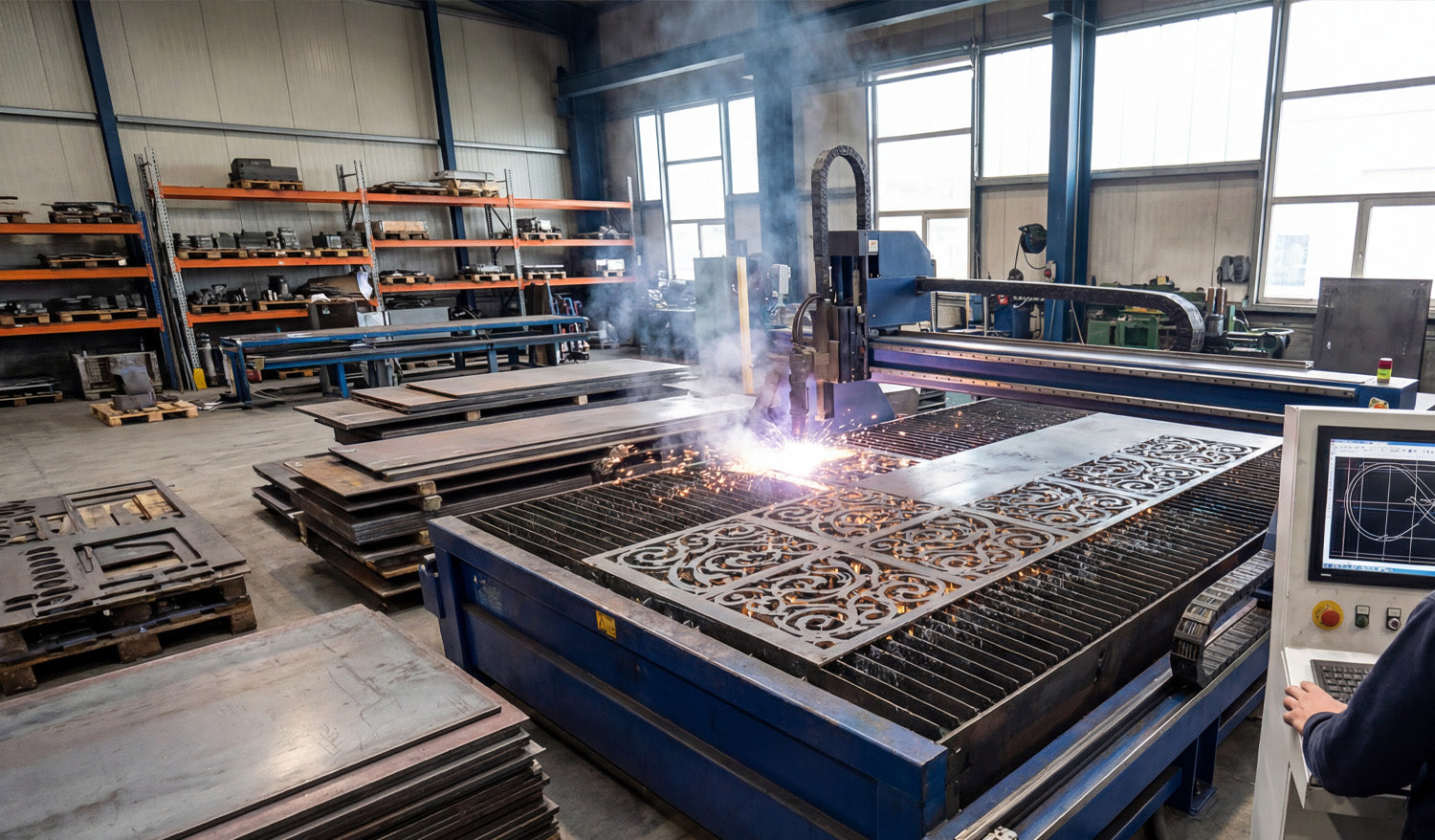
Handling large DXF files for CNC cutting is all about keeping performance under control—optimizing geometry, splitting smartly when needed, and setting up your software and hardware so big jobs run smoothly instead of crashing or freezing.
Why Large DXF Files Are a Challenge in CNC Cutting
Big DXF files usually mean one of three things: huge physical size, extreme detail, or a lot of different parts packed into one drawing. All of these can stress your CAD, CAM, and CNC controller.
- Slow performance: Viewers and CAM software can lag or freeze when panning and zooming.
- Long toolpath generation: CAM needs more time and memory to calculate toolpaths.
- Controller limits: Some machines cannot handle very large G-code files smoothly.
- Higher risk of errors: Corrupted saves, incomplete cuts, or lost steps mid-job.
The good news: with the right workflow, you can make large DXF files much more manageable.
Tip 1: Start by Cleaning the Geometry
Even before you worry about file size, make sure the geometry in your large DXF is clean and reliable.
- Remove duplicates: Delete overlapping lines and curves to avoid double cuts.
- Close open contours: Ensure outer profiles and internal cutouts form closed loops.
- Delete stray entities: Get rid of tiny line fragments, points, and unused blocks.
- Unify polylines: Convert many small segments into longer polylines wherever possible.
Clean geometry reduces toolpath complexity and helps CAM software handle the file more efficiently.
Tip 2: Reduce Node Count on Very Detailed Artwork
One of the biggest causes of “heavy” DXF files is excessive node count—especially from auto-traced images or intricate art.
- Use simplify curve or optimize functions in your CAD/vector software.
- Set a reasonable tolerance so curves stay visually accurate but use fewer points.
- Focus on high-density areas: decorative borders, textures, or traced logos.
- Replace jagged polylines with smoother arcs and splines where appropriate.
Fewer nodes mean lighter DXF files, faster toolpaths, and smoother motion on the CNC machine.
Tip 3: Break Huge Designs into Logical Sections
Instead of trying to run one giant DXF for everything, split the design into smaller, logical pieces.
- By physical area: Divide large wall art or panels into tiles that fit your machine bed.
- By part type: Separate brackets, gussets, signs, and decorative pieces into different files.
- By operation: Use one DXF for cutting and another for engraving if complexity is high.
This approach keeps individual files lighter and easier for your software and controller to handle.
Tip 4: Use Layers to Organize Complex DXF Files
Layers are essential when working with large, multi-part DXF drawings.
- Create layers for CUT_OUTSIDE, CUT_INSIDE, ENGRAVE, SCORE, and REFERENCE.
- Group similar parts or repeated components into named layers.
- Temporarily hide layers you are not working on to improve performance.
- Export layer-based subsets as smaller DXFs when you only need part of the design.
Well-structured layers turn one huge DXF into a set of controllable chunks that are easier to process.
Tip 5: Match DXF Detail Level to Your CNC Process
Not all detail is useful in real cutting. What looks beautiful on-screen may be impossible or unnecessary on the machine.
- For laser cutting, you can keep fairly fine detail but still avoid micro cuts smaller than your kerf.
- For plasma cutting, simplify tiny shapes and thin bridges that will not hold up in metal.
- For routers and mills, respect tool diameter—remove features your bit cannot physically reach.
Reducing detail that the machine cannot realistically reproduce shrinks file size and improves cut quality.
Tip 6: Use Tiling for Oversized Panels
If your DXF describes a large panel or mural that exceeds your machine’s cutting area, use tiling instead of forcing one massive file.
- Divide the design into tiles that fit safely inside your working envelope.
- Add small registration marks on each tile for accurate alignment during assembly.
- Export each tile as its own DXF or job file for easier toolpath generation.
Tiling lets you cut very large installations in manageable sections without overloading your software or controller.
Tip 7: Choose the Right DXF Version
Some CAM and controller software works better with older, simpler DXF versions.
- Try exporting in R12/R14 DXF format, which is widely supported and less “heavy.”
- Avoid unnecessary entities (hatches, embedded images, 3D data) when you only need 2D paths.
- If your software allows, strip non-essential data on export to keep files lean.
Using a compatible, minimal DXF version can dramatically reduce load times for large designs.
Tip 8: Upgrade Hardware Where It Matters
Large DXF files demand more from your computer. Sometimes software is not the bottleneck—hardware is.
- More RAM: Helps CAD and CAM handle big designs and long toolpaths.
- Fast SSD storage: Speeds up file loading, saving, and swapping large projects.
- Decent CPU: CAM calculations and simulations run faster with a stronger processor.
If you regularly work with huge files, a modest hardware upgrade can pay off in reduced wait times and fewer crashes.
Tip 9: Manage Toolpaths Smartly in CAM
When generating toolpaths from large DXF files, be intentional about how you structure the job.
- Generate separate toolpaths for different areas or part groups instead of one mega-path.
- Use cut order controls to minimize rapid moves and reduce time.
- Consider breaking the job into multiple G-code files or job files if your controller has size limits.
- Simulate your paths to catch inefficient zig-zags and unnecessary passes.
Well-organized toolpaths keep your CNC running efficiently, even when the source DXF is large.
Tip 10: Compress and Archive Large DXF Projects Properly
When you are done designing and cutting, store large DXF projects in a way that is safe and easy to retrieve.
- Use ZIP archives to compress related DXF, CAM, and preview files into one package.
- Include readme or notes with material, thickness, and machine settings that worked well.
- Organize archives by project, category, or customer so you can find them quickly later.
Good archiving keeps your large, complex jobs from becoming a mess of random files that no one wants to touch again.
Quick Checklist for Handling Large DXF Files
Before sending a big DXF job to your CNC machine, run through this checklist:
- ✔ Geometry is clean (no duplicates, no gaps, no stray junk).
- ✔ Curves are simplified with a reasonable node count.
- ✔ Layers are organized into cut/engrave/score/reference.
- ✔ File is split or tiled if it exceeds machine limits.
- ✔ DXF version is compatible and does not include unnecessary entities.
- ✔ CAM toolpaths are grouped logically and have been simulated.
- ✔ A test cut has verified that detail and fits are correct.
Conclusion
Large DXF files do not have to be a headache for CNC cutting. By cleaning geometry, reducing node count, organizing layers, splitting oversized designs into tiles, and generating smart toolpaths, you can handle big, complex projects with confidence. Combine these tips with solid hardware and a consistent file management strategy, and your CNC laser, plasma, router, or mill will be ready to tackle large DXF jobs smoothly and reliably.




